
With the Enforcer in Allow All mode for 48-72 hours, admins have the opportunity to evaluate the connections, make changes to configurations, and activate full protection with confidence. Moving your Enforcer into a blocking posture will ensure that any traffic that matches the criteria defined in your threat blocking rules will be protected in real-time against threats and unauthorized access.
Transition to Blocking Posture
Moving your network to a blocking posture is the final step in turning your Enforcer into an active security barrier. By enabling threatER in a blocking posture, your Enforcer will:
-
Prevent malicious traffic from entering or leaving your network, ensuring real-time threat mitigation.
-
Provide immediate protection for your organization against cyberattacks, such as malware, ransomware, and other vulnerabilities.
-
Enforce your security policies, ensuring that only the traffic you’ve explicitly allowed will pass through your network.
In the threatER Portal, navigate to Enforce, then to Networks, click on the three vertical dots and select Edit to change your policies.
Go to the Inbound section and move your policy from "Allow All" to "Default Inbound." Go to the Outbound section and move your policy from "Allow All" to "Default Outbound." Click Save to apply the changes.
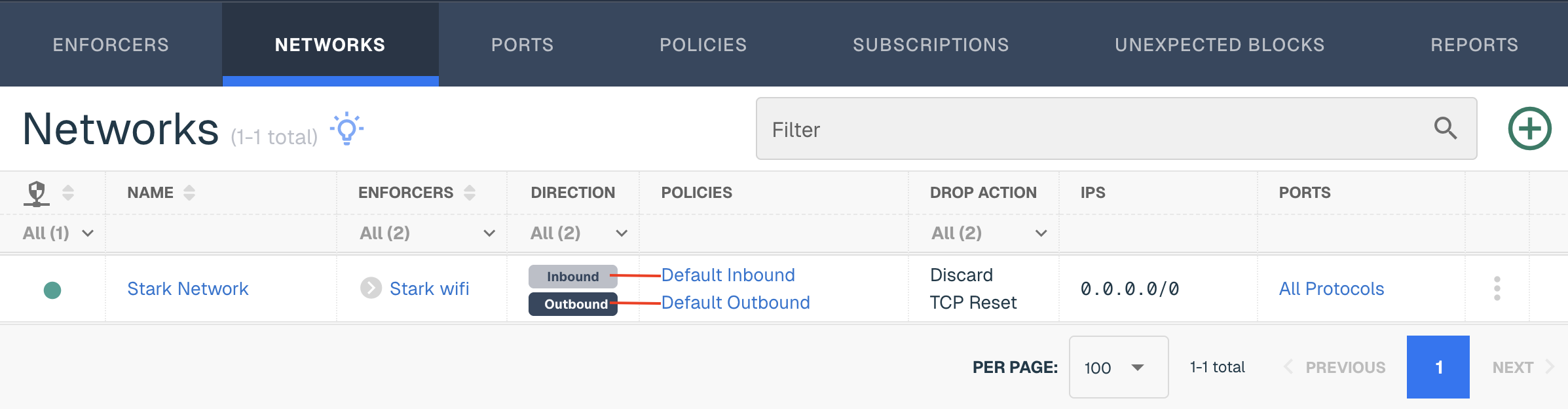
The Enforcer will now begin blocking malicious traffic based on your policies for each direction.
After switching to a blocking posture, it’s important to actively monitor your network and Enforcer to ensure everything is working as expected:
Keep in mind on the following metrics:
-
Real-Time Traffic Reports: Review the logs for any blocked traffic to understand the impact of your rules.
-
Alert Notifications: Monitor any alerts or notifications related to blocked threats. This will help you identify if anything important is being blocked that should be allowed.
-
Performance Monitoring: Check the Enforcer’s resource utilization (CPU, memory, and network throughput) to ensure it is handling the load efficiently without causing delays or disruptions.
Adjust Configurations Based on Feedback
During the next couple of weeks, you may find areas that require further fine-tuning including refining blocking rules and adding IPs to trusted traffic. Consider looking at the Reports tab in the Portal to identify opportunities for more stringent policies for your inbound and outbound policy. The Category Summary page in the Reports tab is a great place to start
For your inbound policy, we set the default risk thresholds to 90 across all 19 categories. We recommend adjusting these thresholds and lowering them over time. The lower the score, the more stringent the category and the more threats threatER will block over time.
The Category Summary page in the Reports tab is related to the threat list, where each IP has an associate category and risk score. This information has been categorized by the threat list as a potential threat but is allowed or blocked based on the risk scores enabled at the policy level. These graphs are not based on an unique count, as IPs can appear in multiple categories.
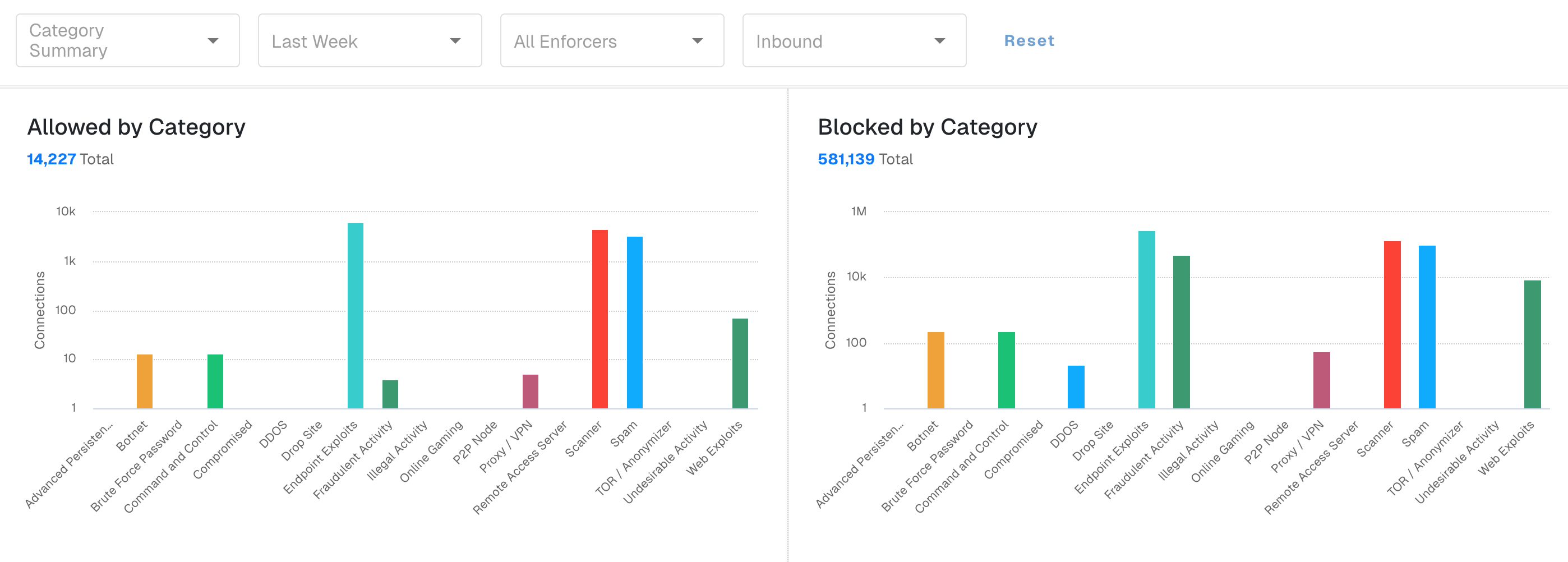
The Allowed by Category graph will display connections that were allowed even for connections where the IP appeared on the Threat List. The IP can appear on this chart if the IP is on an allow list (allow lists supersede any blocking posture) and/or the risk score is lower than the category threshold.
We recommend looking at the stats for this graph, especially for inbound policy, and consider lowering the risk thresholds for categories are seeing a higher volume allowed.
You can also consider lowering the thresholds for the outbound policy but you may need to be more careful so you don't increase the likelihood of unexpected blocks.
Understanding Unexpected Blocks
From time to time, you may experience websites being blocked unexpectedly. There are different types of unexpected blocks:
-
Mistakes in cyber intelligence aka false positives
-
Misunderstood indicators
-
Dangerous traffic that threatER is actively protecting against
We encourage you to read "The Truth About Unexpected Blocks" for the full picture of this term.
If you run into any issues where employees can't access the full or partial website, we recommend following the following the mitigation steps to mitigate unexpected blocks.
One of the steps will include adding the website IPs to the allow list created in Step 5 - Set Up Policies.
Celebrate! 🎉
Congratulations, you are blocking traffic with Enforce!
You should continue to monitor performance and traffic regularly to ensure optimal protection and prevent any disruptions.
To ensure your network remains secure, make a habit of periodically reviewing your blocking rules and adjusting them as necessary to keep up with evolving security threats.
For further guidance on managing your Enforcer post-deployment or resolving any issues during the transition, consult our Troubleshooting Guide or contact our Support Team for assistance.