
Before moving into a blocking posture, you may consider testing your configuration to ensure that the Enforcer is performing as expected. In Allow All (Pass-Thru Mode), the threatER Enforcer will monitor and log traffic but will not block any of it. This mode allows you to review the impact of your configured rules, analyze potential unexpected blocks, and fine-tune your settings without disrupting normal network traffic.
If you would like to immediately deploy in a blocking posture, proceed to Step 7 – Transition to Blocking Posture.
Why Deploy in Allow All?
Deploying in Allow All gives you the opportunity to validate your policy configuration in a real-world environment without the risk of unintentionally blocking legitimate traffic. This step allows you to:
-
Observe how the Enforcer responds to traffic based on your configured rules.
-
Identify and resolve false positives, ensuring your Enforcer doesn’t interfere with business-critical operations.
-
Fine-tune your rules based on real traffic patterns and threat detection.
Confirm Allow All Deployment
In the threatER Portal, navigate to Enforce then to Networks. Confirm that both your Inbound and Outbound policy is set to "Allow All."
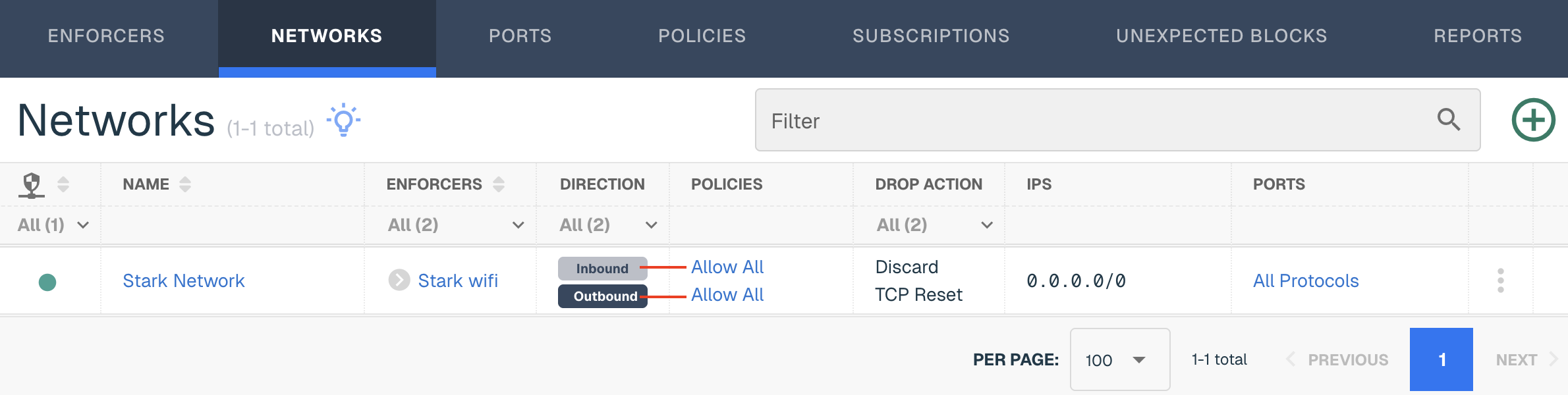
In this mode, the Enforcer will log all traffic that matches your configured rules, but it will not block anything.
Click on the three vertical dots and click Edit if you need to change the policies from a blocking to an allow all posture.
Install Your Enforcer In-Line
It’s now time to install or deploy your Enforcer in your network. While your network infrastructure may vary, we typically see customers deploy the Enforcer between your ISP (router) and the firewall. The benefits include preemptively removing bad inbound traffic and being the last line of defense for outbound connections. Because we sit a true layer 2 bump in the wire, our software can be deployed just about anywhere you need it to be.
For additional questions around deployment, reach out to our customer success team for assistance.
Once deployed, the Enforcer will now begin monitoring and logging traffic without interrupting your network’s normal operations.
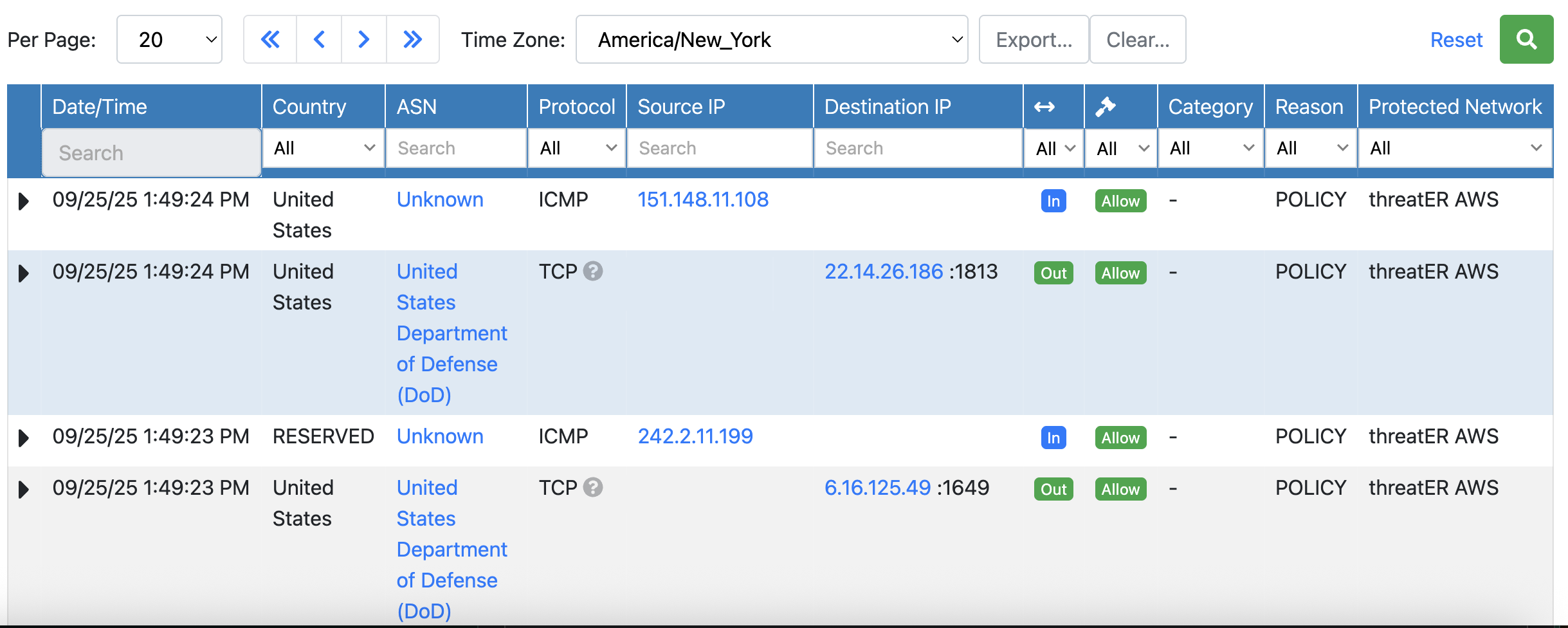
Verify that traffic is flowing through the Enforcer by logging into the Enforce UI > Logging > Internal Logs. Confirm that the Source and Destination IP are in the correct place for you inbound and outbound directions.
Internal Log Analysis
Utilize the Internal logs to see what is coming in and out of your network. The columns provide the following information under Packet / Domain logs:
|
Field Name |
Description |
|
Date/Time |
The date and time of the connected request |
|
Country |
The country the IP originated from, if known. This will not display for domain logs. |
|
ASN |
The ASN the IP originated from, if known. This will not display for domain logs. |
|
Protocol |
UDP, TCP, ICMP, etc for example |
|
Source IP |
the sender of the network request |
|
Destination IP |
the recipient of the packet |
|
Direction |
inbound or outbound |
|
Action |
Narrow down your search by including all connections, connections that were only allowed and those that were blocked only. |
|
Category |
Displays connections that were on the Webroot or Proofpoint Threat Lists. This will not display for domain logs. |
|
Reason |
The reason the connection was allowed or blocked. In Allow all mode, the reason will always state "Policy." |
|
Protected Network |
The network that was used to determine the policy action |
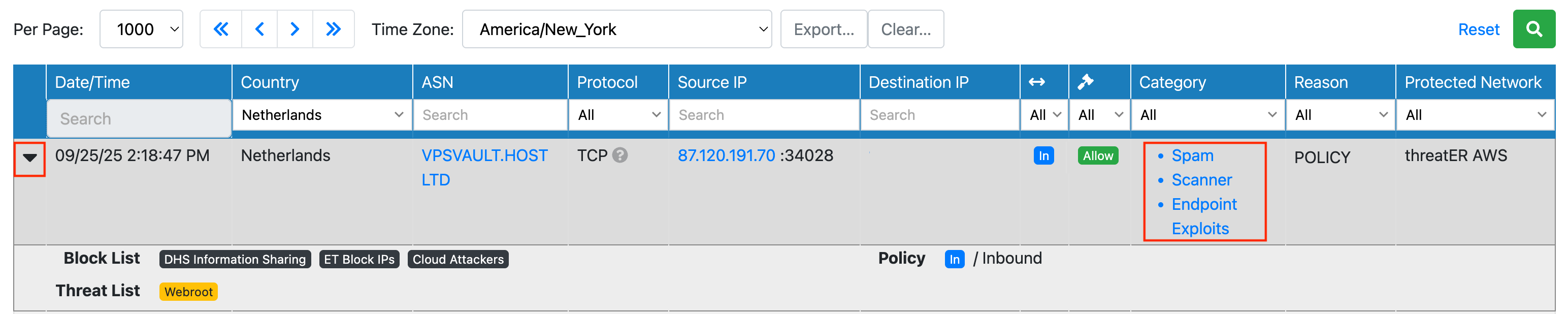
Select the black triangle next to Date/Time to see the if the IPs were on any allow, block or threat lists. In the example below, this inbound connection from the Netherlands was on three block lists and the Webroot threat list.
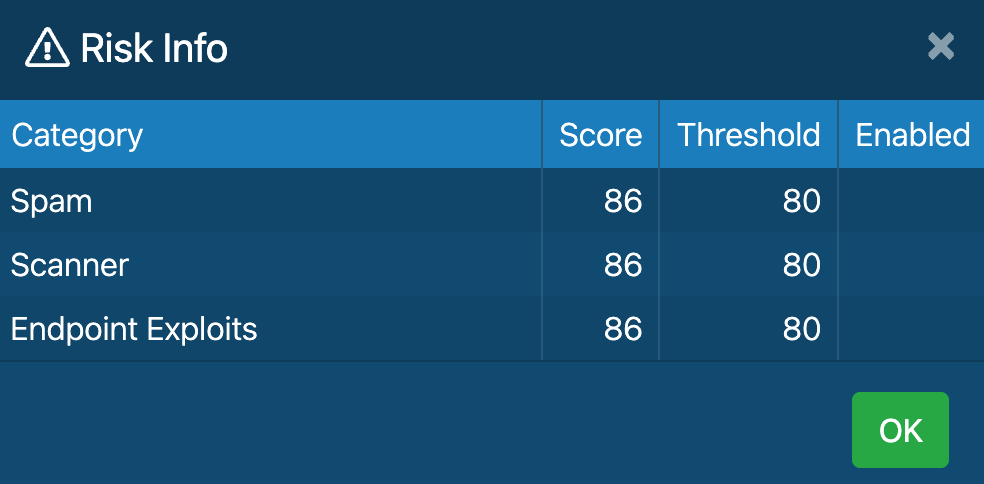
Click on the Category link to confirm if this connection would have been blocked by the Webroot Threat list. In the example below, the score for this category was above the threshold for the three categories of Spam, Scanner and Endpoint Exploits. This means this connection could have been blocked by the Webroot Threat list if you had this list enabled in a blocking policy.
Next Step
We recommend letting threatER monitor your network for 48–72 hours to capture traffic detail. In the next step, we will review moving the Enforcer into a blocking posture.
Proceed to Step 7 – Transition to Full Deployment (Block Mode)