
Preparing your threatER Enforcer is the first step to securing your network. There are many ways to deploy threatER Enforce in your environment. Whether you’re using an Enforcer with hardware purchased from threatER, self-sourced hardware, or deploying Enforce in the cloud, virtually or via Wi-Fi, this guide will walk you through the process.
By the end of this step, your Enforcer will be physically or virtually set up and ready to connect to the threatER Portal.
Choose Your Deployment Path
-
Purchased hardware (Enforce pre-installed)
-
Self-sourced hardware (software installation required)
-
Cloud or Virtual deployment
-
Enforce for Wi-Fi deployment
Purchased Hardware (Enforce pre-installed)
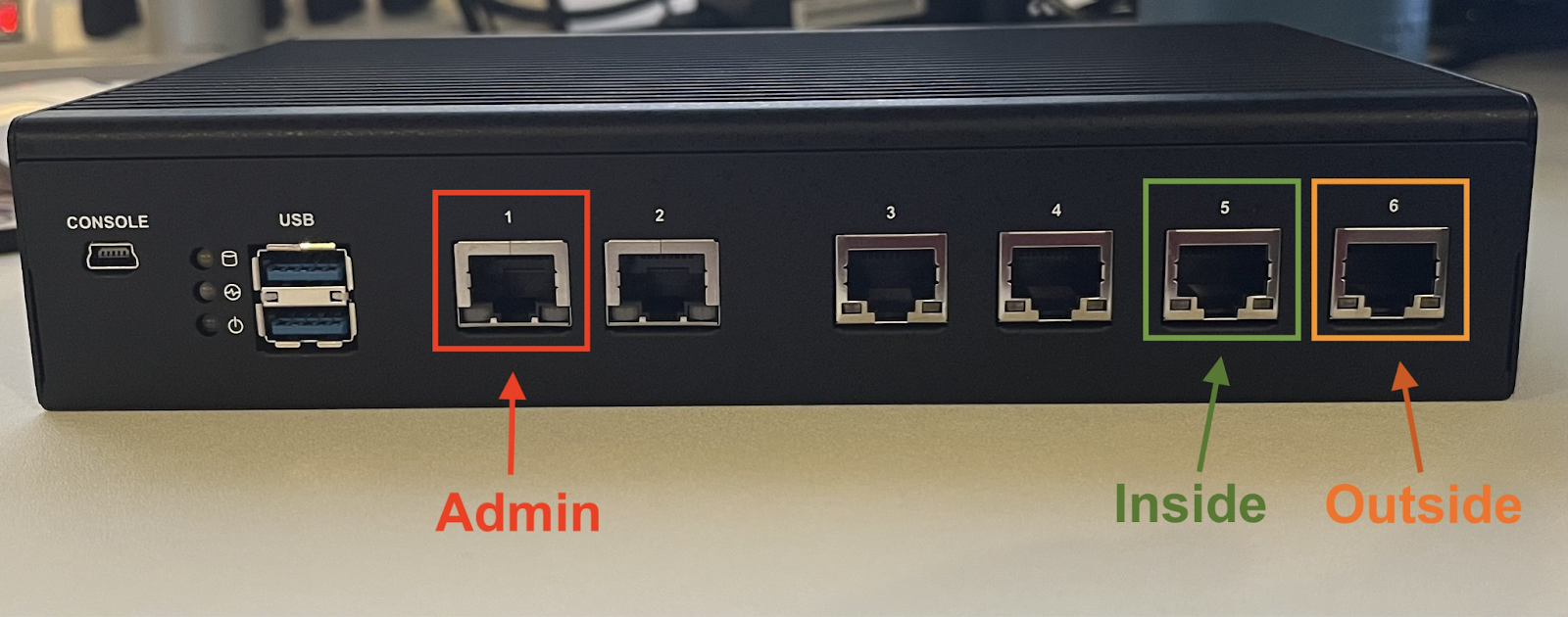
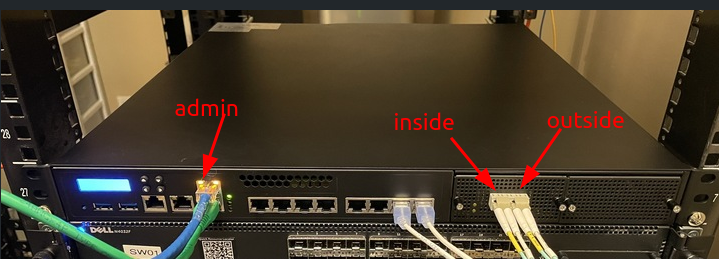
For customers using hardware purchased from threatER (e.g., Lanner, Dell models), your software is installed and ready to go! Connect the Enforcer to a power source and connect the admin port to your local network using a standard RJ45 ethernet cable, and you are ready to proceed to the next step at the bottom of the page.
Below are screenshots showing the location of the admin port for Lanner NCA-1510A 1G set-top appliances, Lanner NCA-5220A 10G 1U appliances and Dell R350/R360 10G 1U appliances:
Lanner NCA-1510A:
Lanner NCA-5220A:
Dell R350/R360:
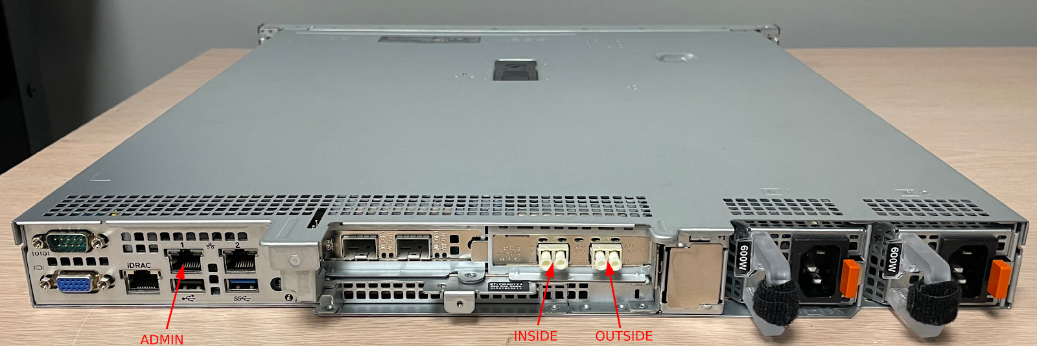
💡 What about the other ports? The Inside and Outside ports will be used when you are ready to deploy the Enforcer in-line in your network.
Self-sourced Hardware (Software installation Required)
For those using their own hardware, you will:
-
Make sure to consult our Enforce Software Installation System Requirements and Hardware Prerequisites.
-
Download the threatER Enforce ISO file from our public Dropbox folder.
-
Using the ISO file, create a bootable USB installer using a program such as Rufus.
-
Boot your hardware from the ISO and follow the installation wizard to load the software.
-
Upon completion of the software installation, connect the Enforcer's admin port to your network.
-
Proceed to the next step at the bottom of the page.
For detailed steps, refer to our Enforce ISO Installation Guide.
Cloud or Virtual Deployment
For cloud environments (AWS, Azure, Google Cloud, or KVM), you will:
-
Review documentation for your cloud or virtual environment
-
Access the deployment templates or images from your cloud provider’s marketplace.
-
Deploy the virtual Enforcer instance in your environment.
-
Configure the network settings to ensure connectivity.
-
Proceed to the next step at the bottom of the page.
Refer to our Deployment Guides for step-by-step instructions specific to your cloud provider.
Enforce for Wi-Fi deployment
For Wi-Fi deployments, you will:
-
Review documentation and configure Enforce for Wi-Fi.
-
Proceed to Step 5 (Set Up Enforce Policies).
Refer to our Wi-Fi Deployment Guide for step-by-step instructions specific to software installation and Wi-Fi configuration.
Next Step
Everything looking good? With the software installed, you’re ready to configure the admin interface and activate your Enforcer in the threatER Portal!