Subscriptions under Enforce
Enforcers log traffic, filter traffic, and receive updated threat intelligence with a supported subscription. Without a valid attached subscription, the Enforce software will blindly forward traffic in both directions with no filtering action and no logging. The Subscriptions tab can both be used to assign subscriptions accordingly.
Subscriptions Tab
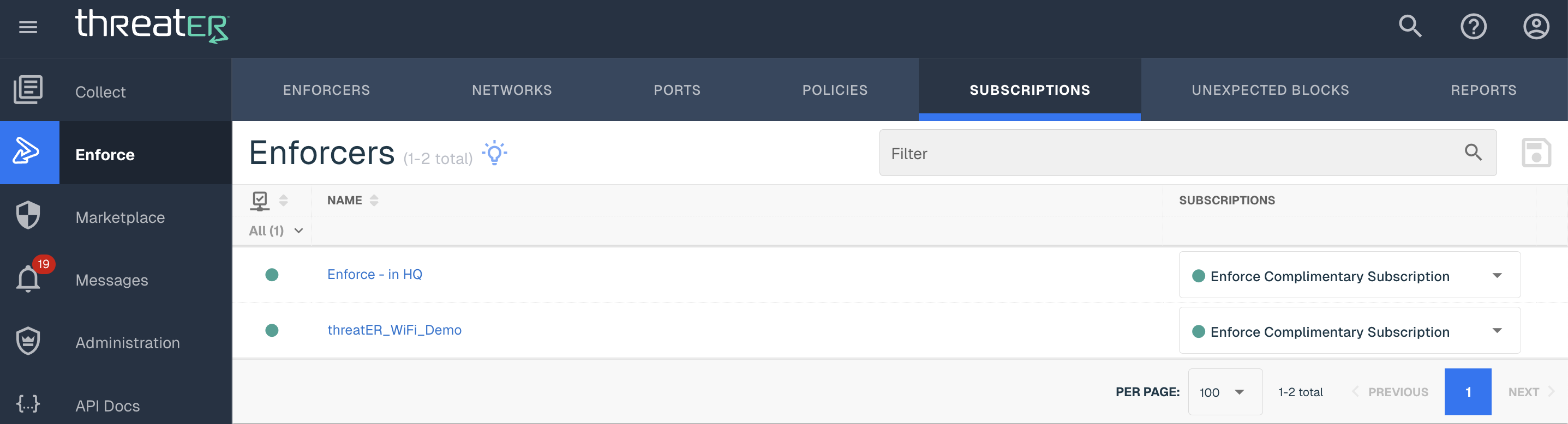
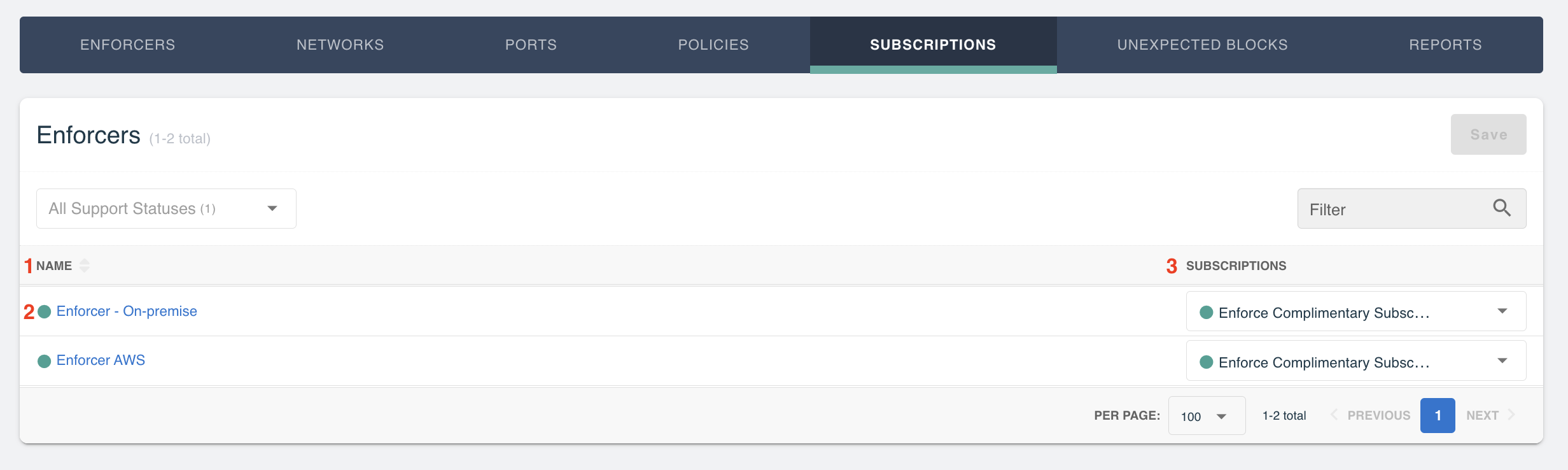
Navigate to Enforce > Subscriptions in the left-hand navigation menu to manage Enforce subscriptions. The following will display on this tab:
|
Field Name |
Description |
|
Name (1) |
Software subscription description |
|
Status (2) |
Options include Green, Yellow and Red. Green means a subscription is actively supported; Yellow indicates support has lapsed; Red means the Enforcer doesn't have a subscription assigned. Any Enforcer assigned a subscription in the Yellow state may not receive updated threat intelligence and could be in an Allow-All state. Contact the Customer Success team to review subscription status. Any Enforce assigned a subscription in the Red state will not receive updated threat intelligence and will be in an Allow-All state. |
|
Subscriptions (3) |
Displays the subscription assigned to the Enforcer |
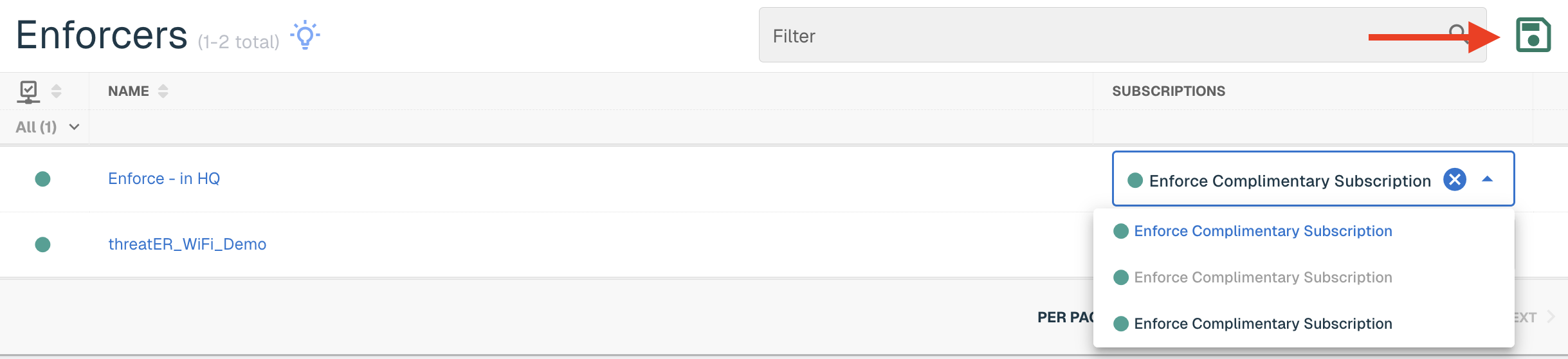
Select the subscription from the drop-down to assign a subscription to an Enforcer. Click Save to save the changes.
Review the selected changes on the Save Changes modal and then select the Save button.
Subscriptions under Administration
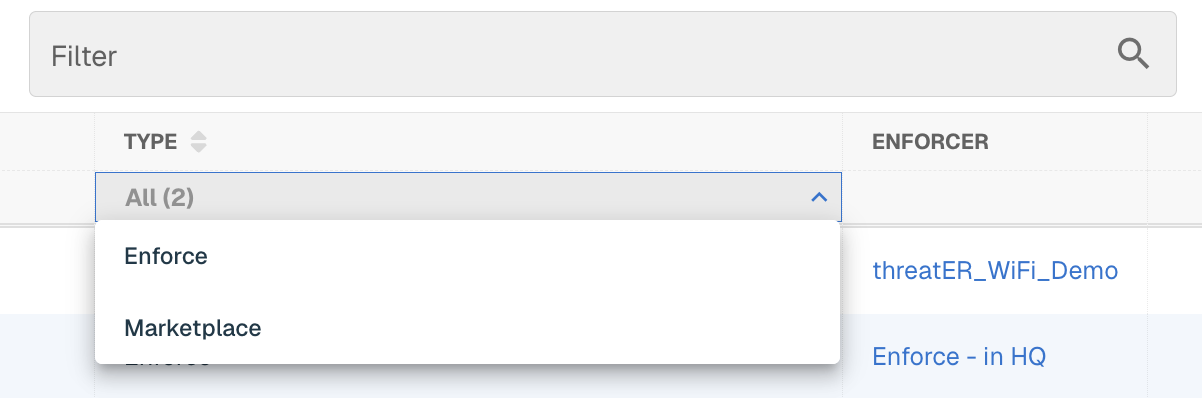
The Subscriptions tab displays all threatER subscriptions that have been purchased. This includes Enforce and Marketplace subscriptions.
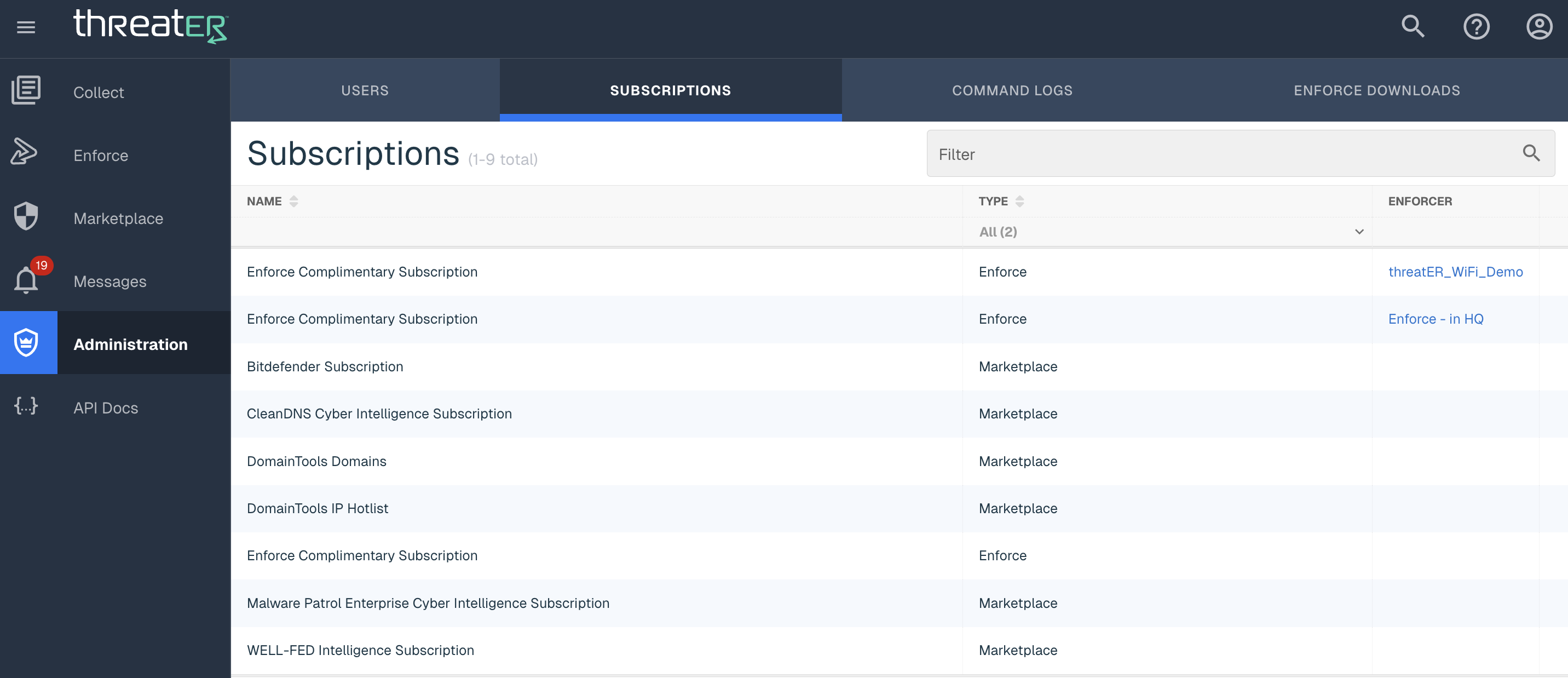
You can filter down to a subscription type or set of subscriptions in the following ways:
-
Types will filter the table down to the type of subscription
-
Subscription Filter allows you to enter text in the Filter Tab search bar in the top right corner of the screen and the table will update to display applicable results