Ports define the protocols for a given Port and can be used across multiple Protected Networks for allowing or blocking defined Ports.
Adding Ports
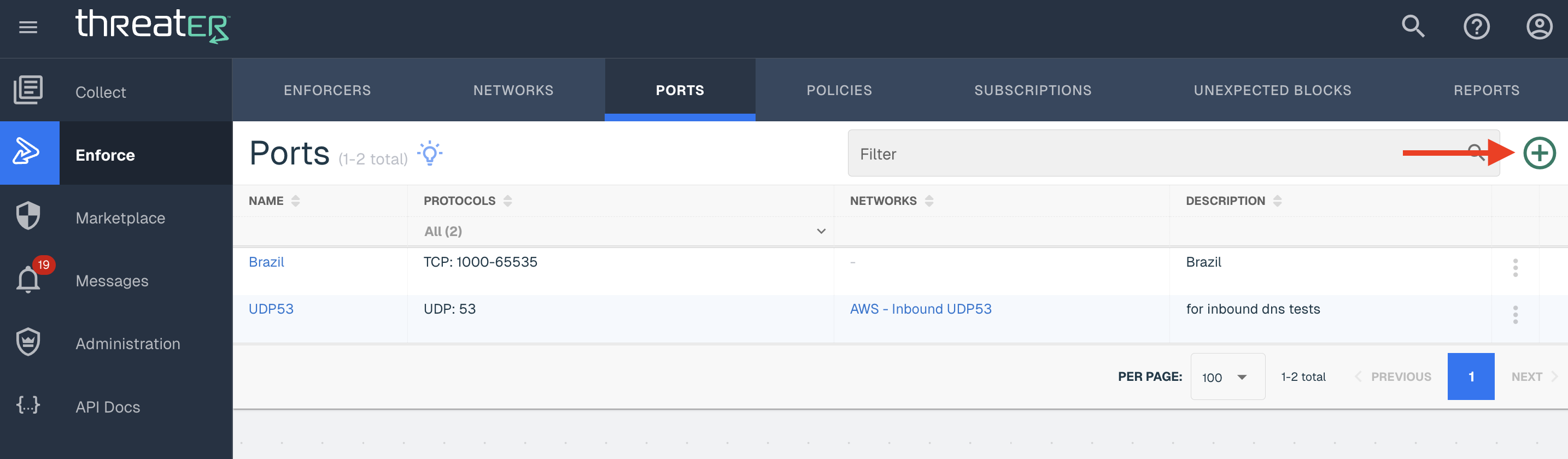
Navigate to Enforcers > Ports in the left-hand navigation menu to add a Port. Click the green ⊕ icon in the top-right corner.
Provide the following (* indicates required field):
|
Field Name |
Description |
|
Name* |
Name of the Port |
|
Description |
A description of the Port |
|
Protocol* |
All:256 is the default selection, but another protocol can be selected from the drop-down. Some protocols, such as TCP and UDP, require a Port and Port Range. |
Click on the +Add button to add the Protocol to the Port. Any additional Protocols to the Port can be included if necessary.
Click the Create button to create the Protected Port.
Editing Ports
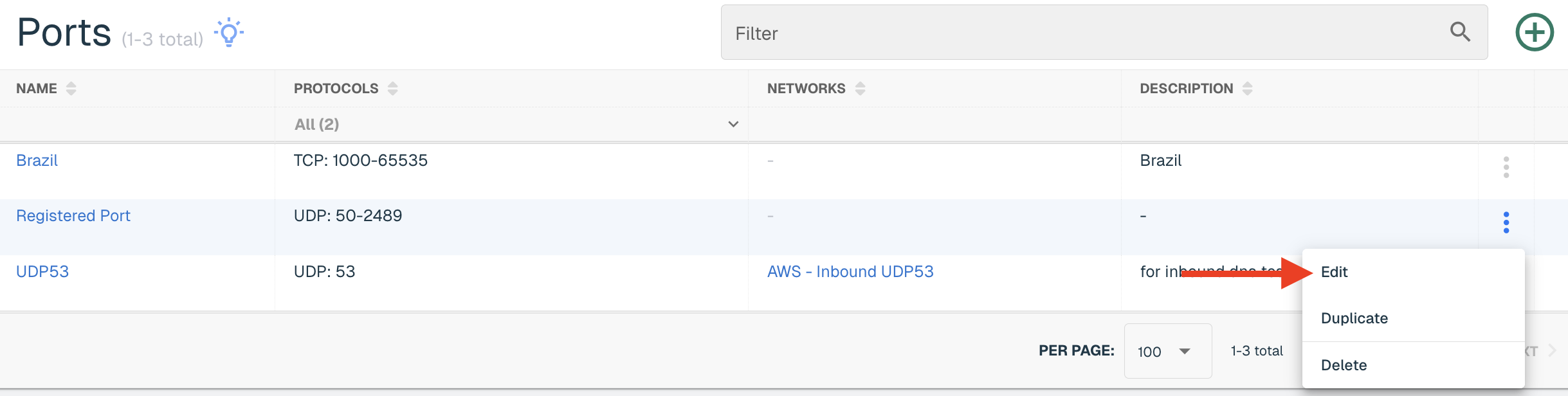
Find the Port in the table and select Edit from the ellipsis menu to edit a Port.
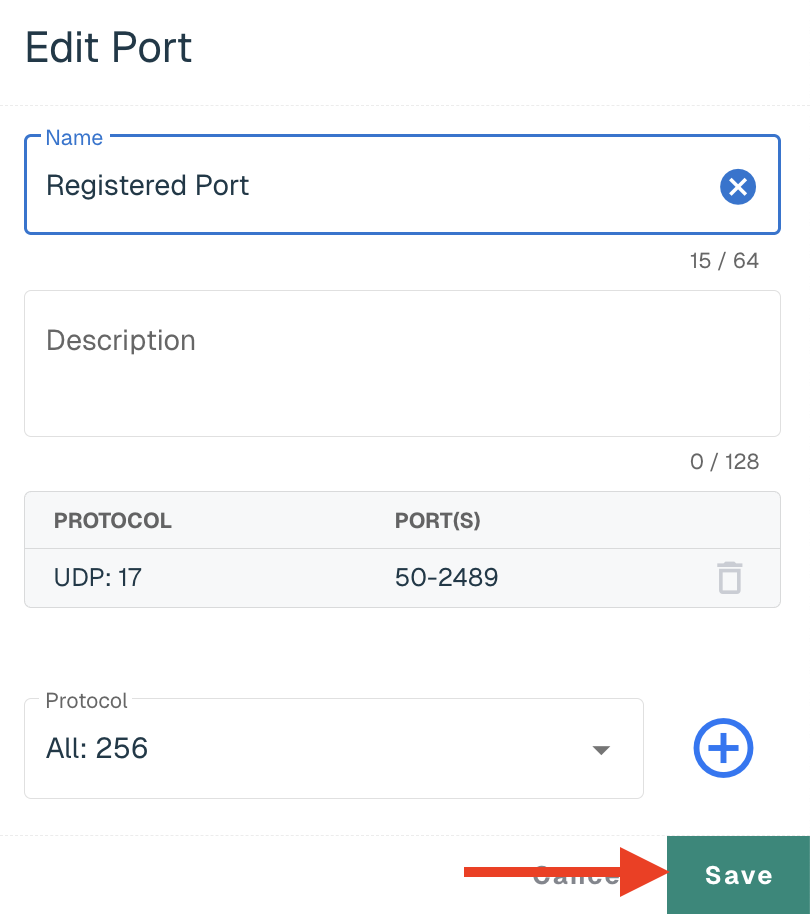
Make the necessary changes and click Save.
Deleting Ports
Find the Port in the table and select Delete from the ellipsis menu to delete a Port.
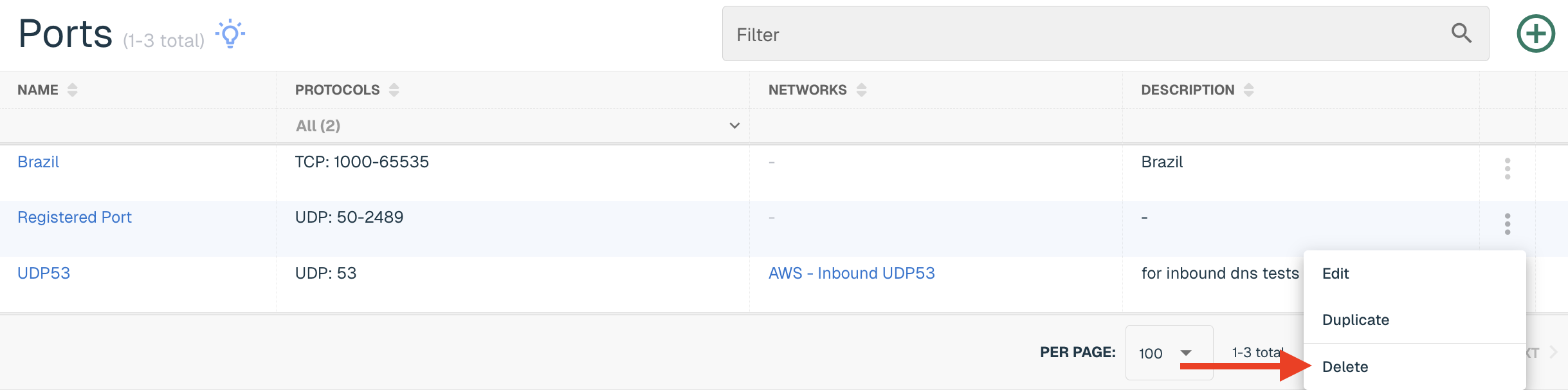
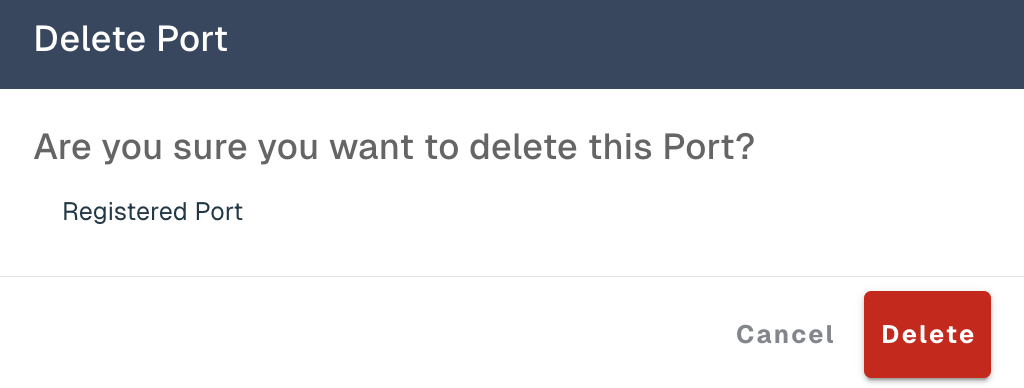
Select the Delete button on the confirmation modal. The Port is now deleted and can't be retrieved.