
Creating Manual IP Allow Lists
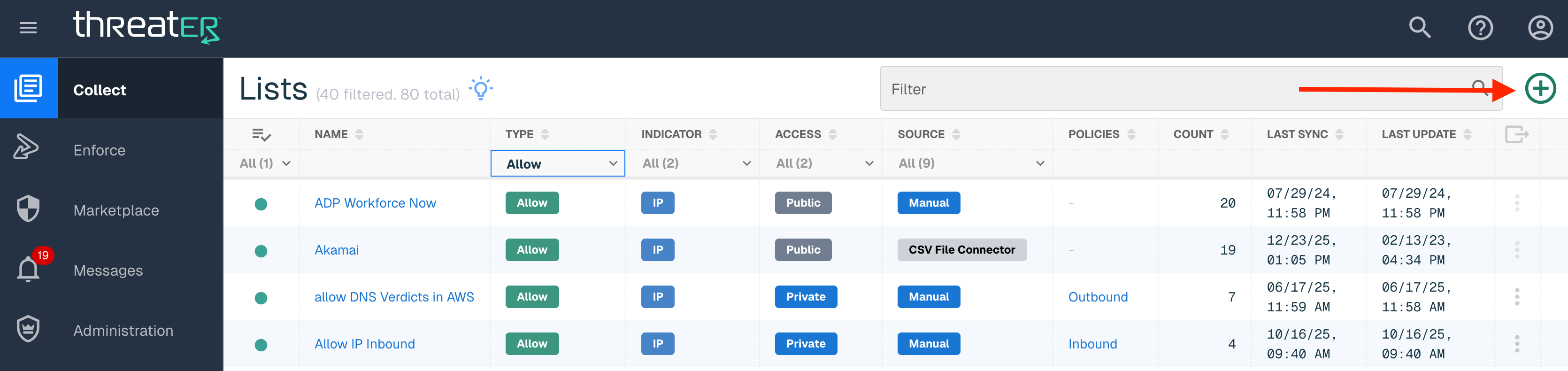
Navigate to Collect in the left-hand navigation menu and click the green ⊕ icon in the top right to create a manual IP list.
Allow List Details
Provide the following information (* indicates required field):
|
Field Name |
Description |
|
Name* |
Unique list name required |
|
Source* |
Options include Manual or Plugin but in this example, select Manual. |
|
List Type* |
Options include Allow, Block or Threat. Only Allow or Block Lists are available for Manual creation as manual Threat Lists (IP & Domain) are not supported at this time. |
|
Indicator* |
Options include IP or Domain but in this example, select IP |
|
Description |
A brief summary of the list |
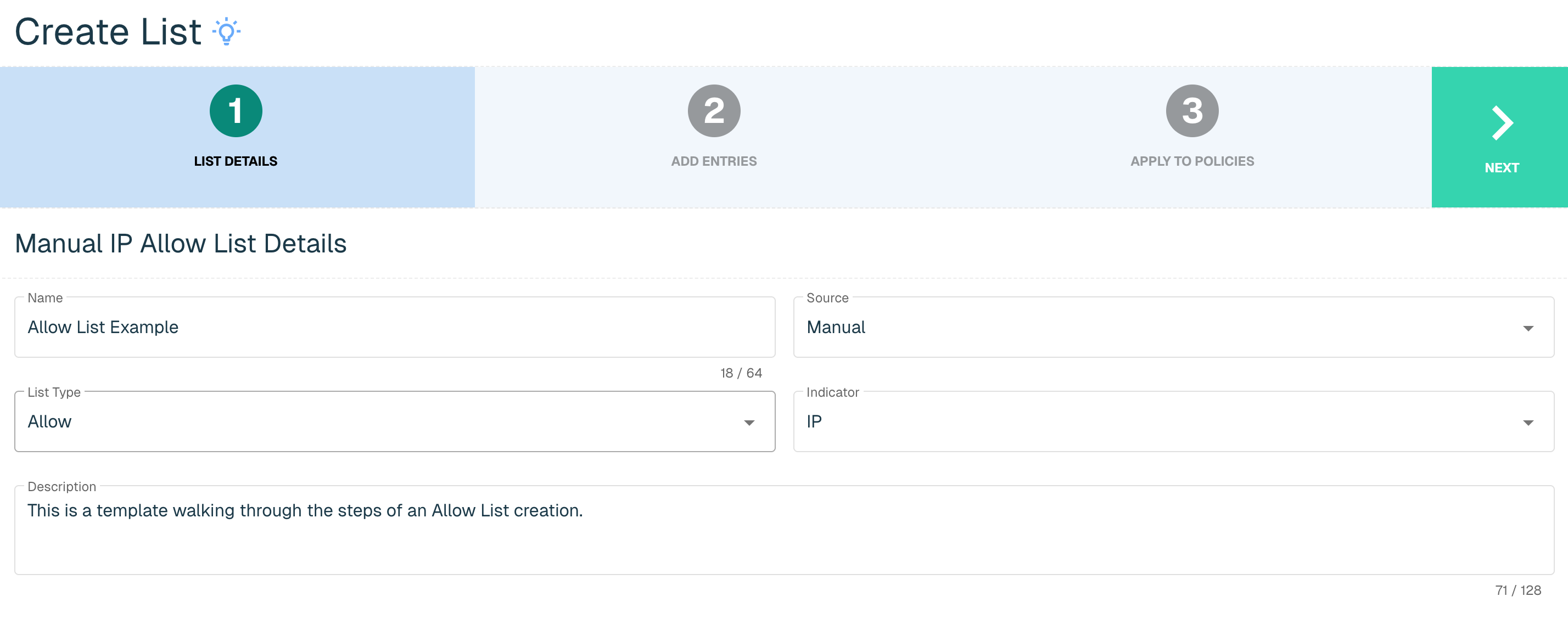
Select Next to proceed to the Add Entries step once all required fields are complete.
Add Allow List Entries
To add entries to the Allow List, enter the following (* indicates required field):
|
Field Name |
Description |
|
IP* |
The IP address to be allowed |
|
Maskbits* |
Subnet mask using CIDR notation (integer ranging from 0 to 32) |
|
Description |
A brief summary of the IP being allowed |
|
Expiration* |
Options including keeping the default expiration to "Never" or providing an expiration date and time. |
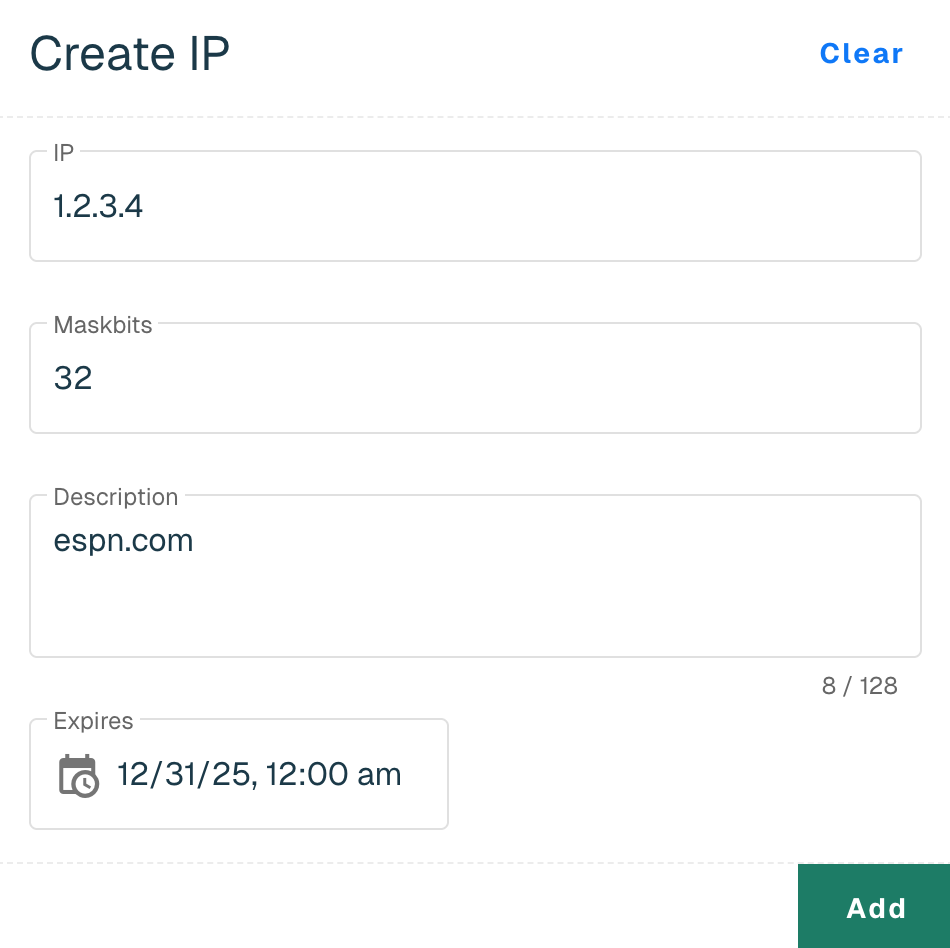
Select the Add button to add the IP to the Allow List. Follow the steps above to add additional IPs to the list. Select the Next button once all IPs are added.
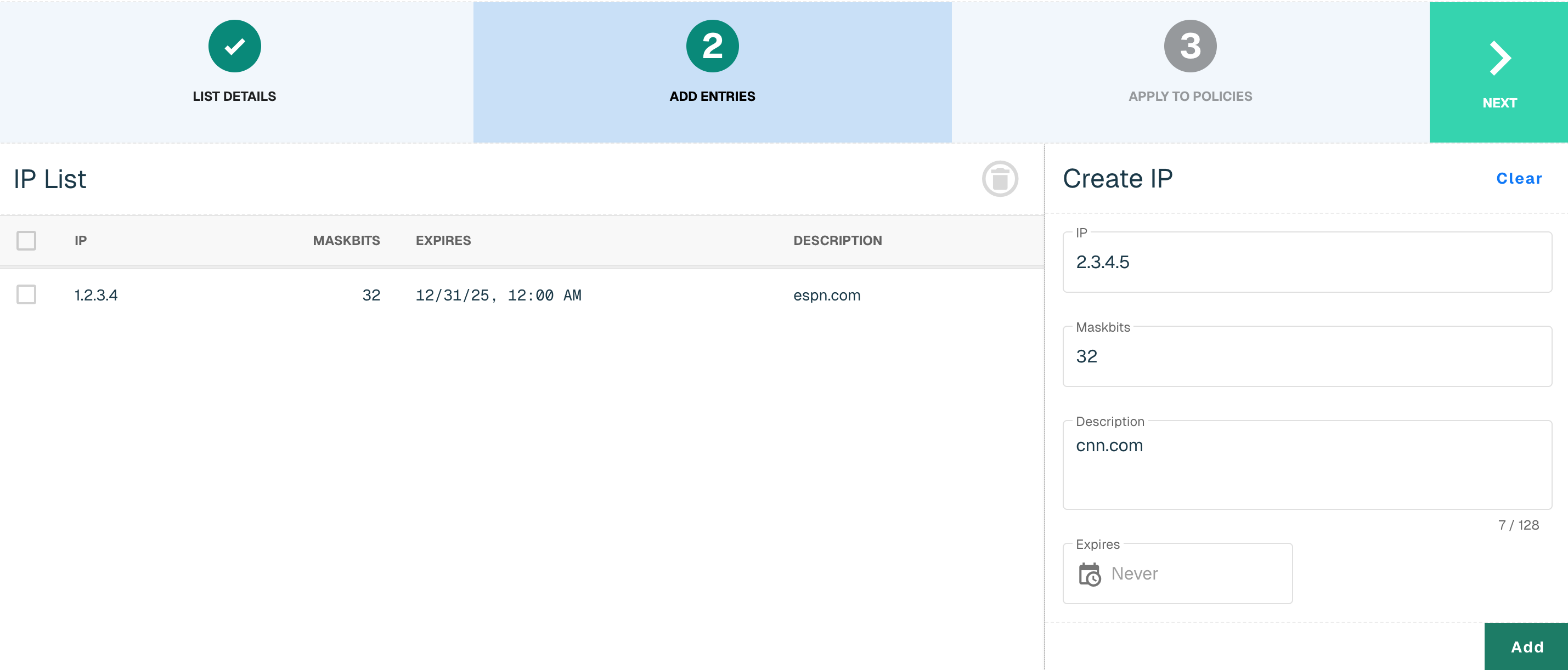
Click the checkbox next to the entry and select the trash icon button to remove an entry.
Apply Allow List to Policies
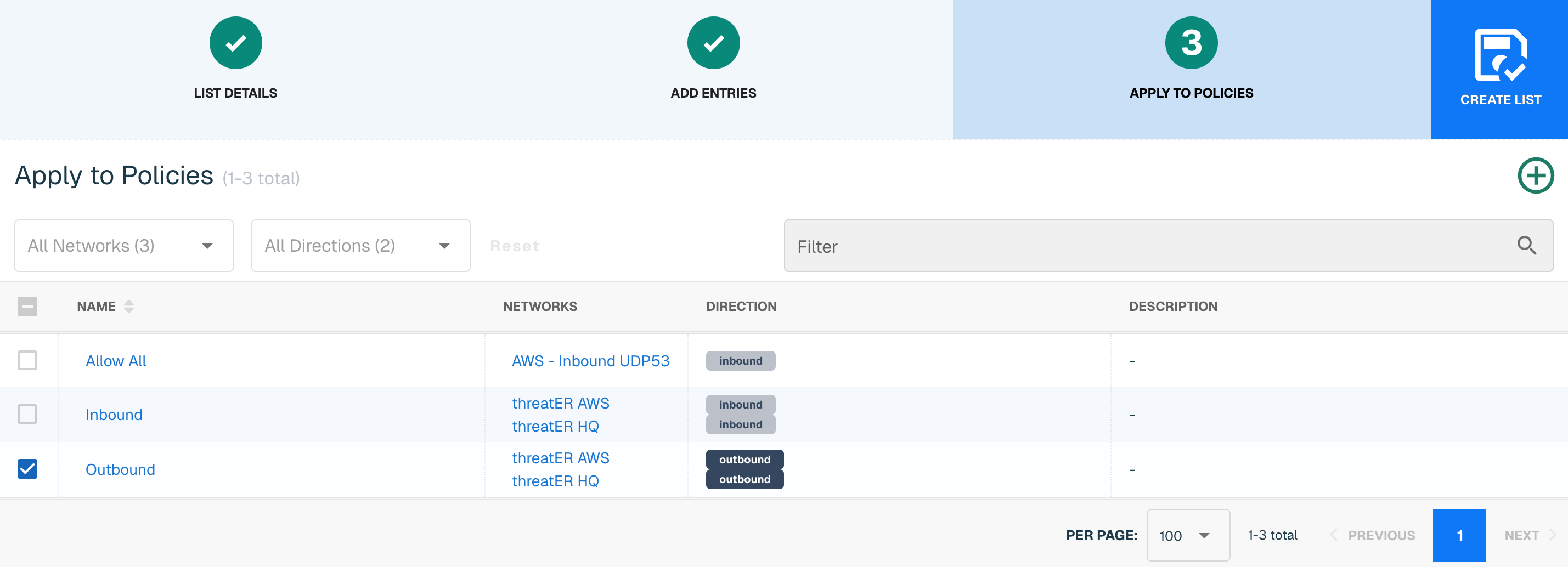
Entries within an IP list are not allowed until the List is applied to a Policy. To apply this new list to a policy, select the applicable policies. Select the Create List button to create the List once all desired selections are made.
Creating Manual IP Block Lists
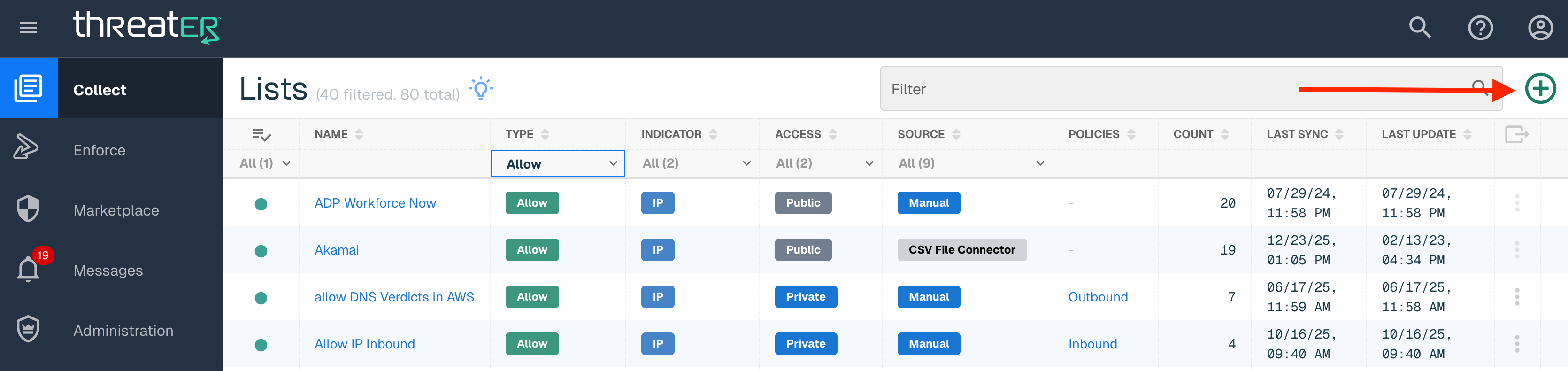
Navigate to Collect in the left-hand navigation menu and click the green ⊕ icon in the top right to create a manual IP block list.
Block List Details
Provide the following information (* indicates required field):
|
Field Name |
Description |
|
Name* |
Unique list name required |
|
Source* |
Options include Manual or Plugin but in this example, select Manual. |
|
List Type* |
Options include Allow, Block or Threat. Only Allow or Block Lists are available for Manual creation as manual Threat Lists (IP & Domain) are not supported at this time. |
|
Indicator* |
Options include IP or Domain but in this example, select IP |
|
Description |
A brief summary of the list |
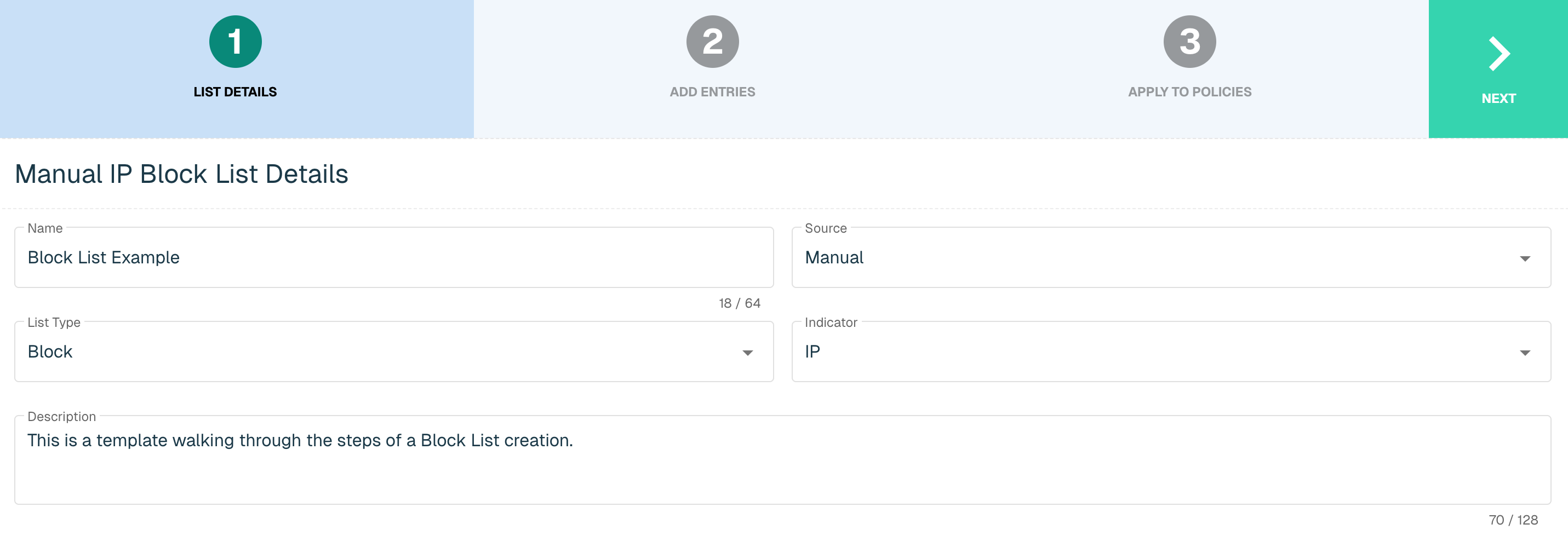
Select Next to proceed to the Add Entries step once all required fields are complete.
Add Block List Entries
To add entries to the Block List, enter the following (* indicates required field):
|
Field Name |
Description |
|
IP* |
The IP address to be blocked |
|
Maskbits* |
Subnet mask using CIDR notation (integer ranging from 0 to 32) |
|
Description |
A brief summary of the IP being blocked |
|
Expiration* |
Options including keeping the default expiration to "Never" or providing an expiration date and time. |
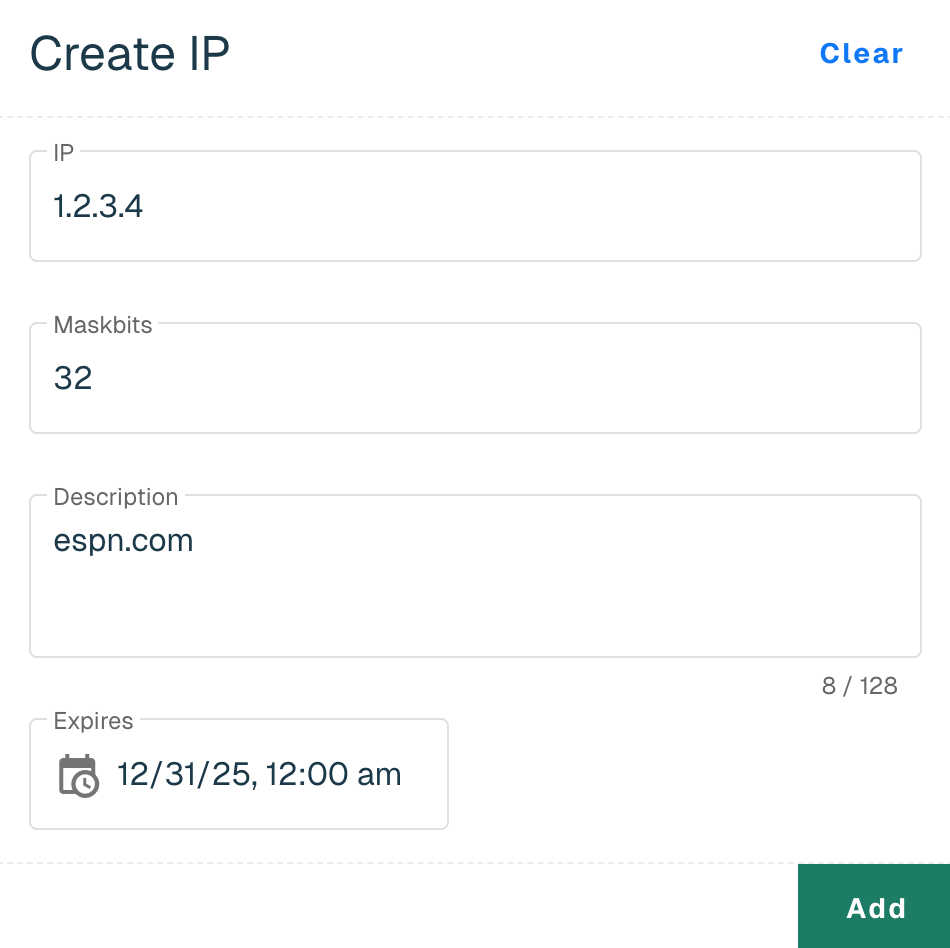
Select the Add button to add the IP to the Block List. Follow the steps above to add additional IPs to the list. Select the Next button once all IPs are added.
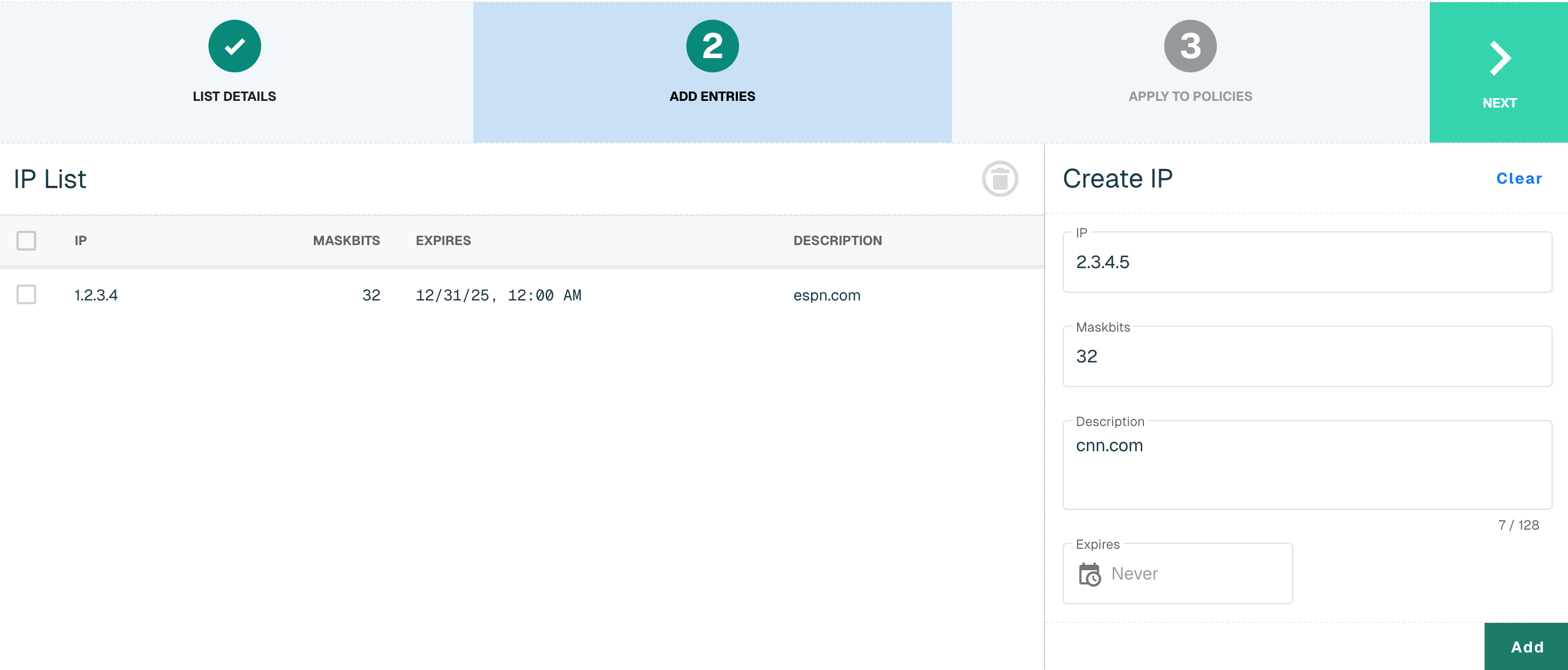
Click the checkbox next to the entry and select the Red trash can button to remove an entry.
Apply Block List to Policies
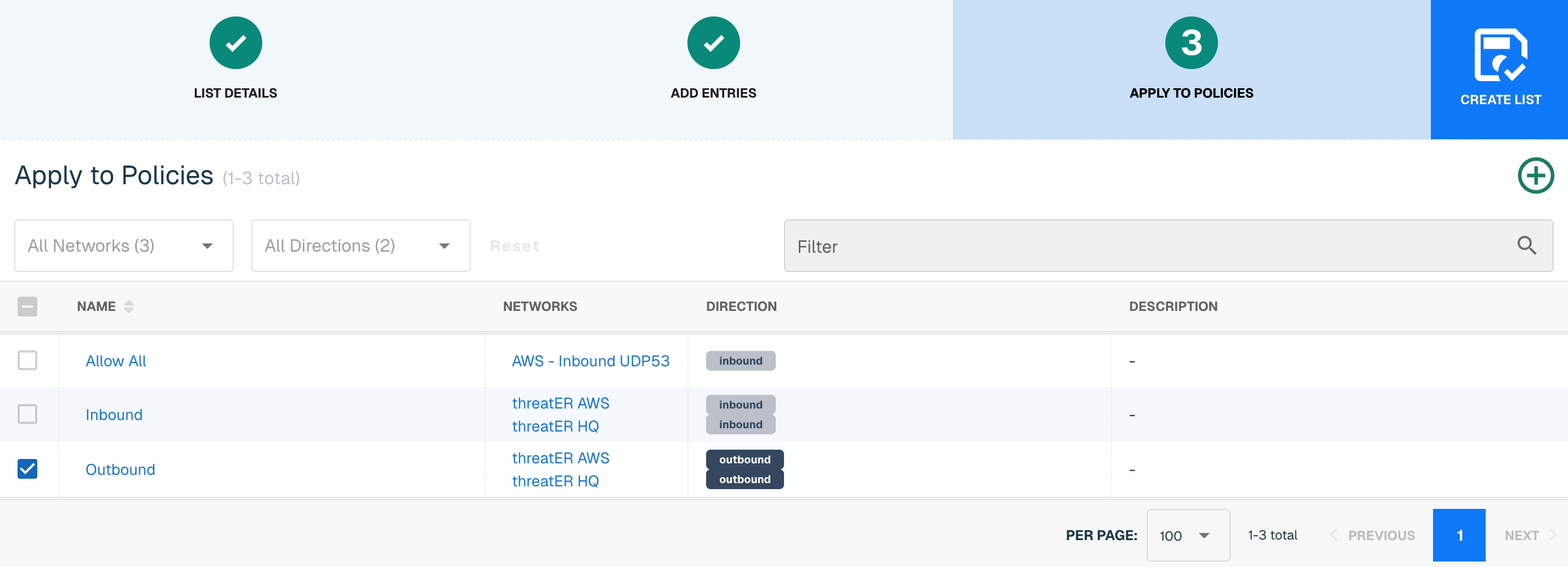
Entries within an IP list are not blocked until the List is applied to a Policy. To apply this new list to a policy, select the applicable policies. Select the Create List button to create the List once all desired selections are made.
Utilizing Plugin for IP Allow List Creation
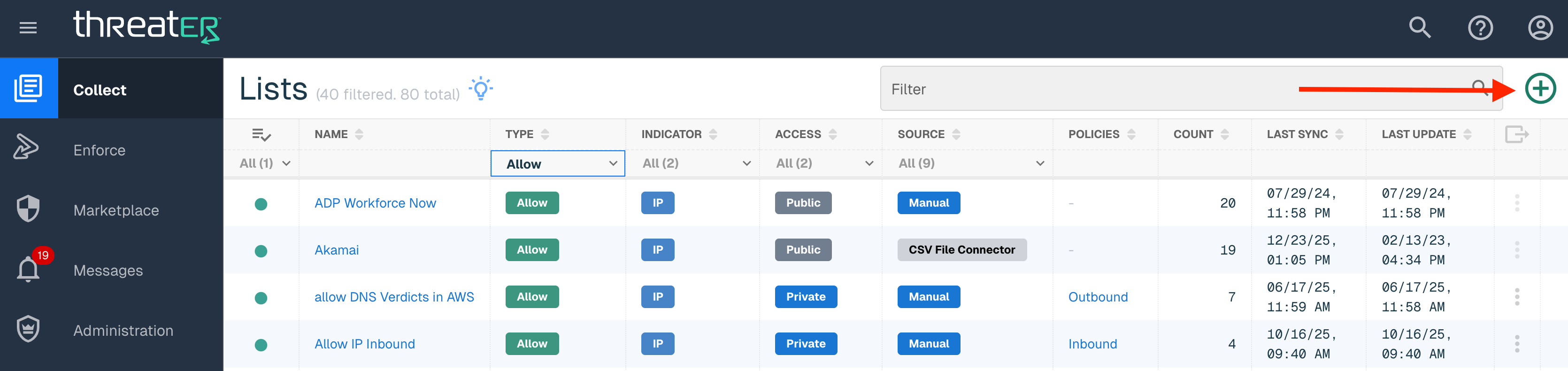
Navigate to Collect in the left-hand navigation menu to utilize a plugin IP list. Select the green ⊕ icon button in the top-right corner.
Allow List Details
Provide the following information (* indicates required field):
|
Field Name |
Description |
|
Name* |
Unique list name required |
|
Source* |
Options include Manual or Plugin but in this example, select Plugin. |
|
List Type* |
Options include Allow, Block or Threat. |
|
Indicator* |
Options include IP or Domain but in this example, select IP |
|
Description |
A brief summary of the list |
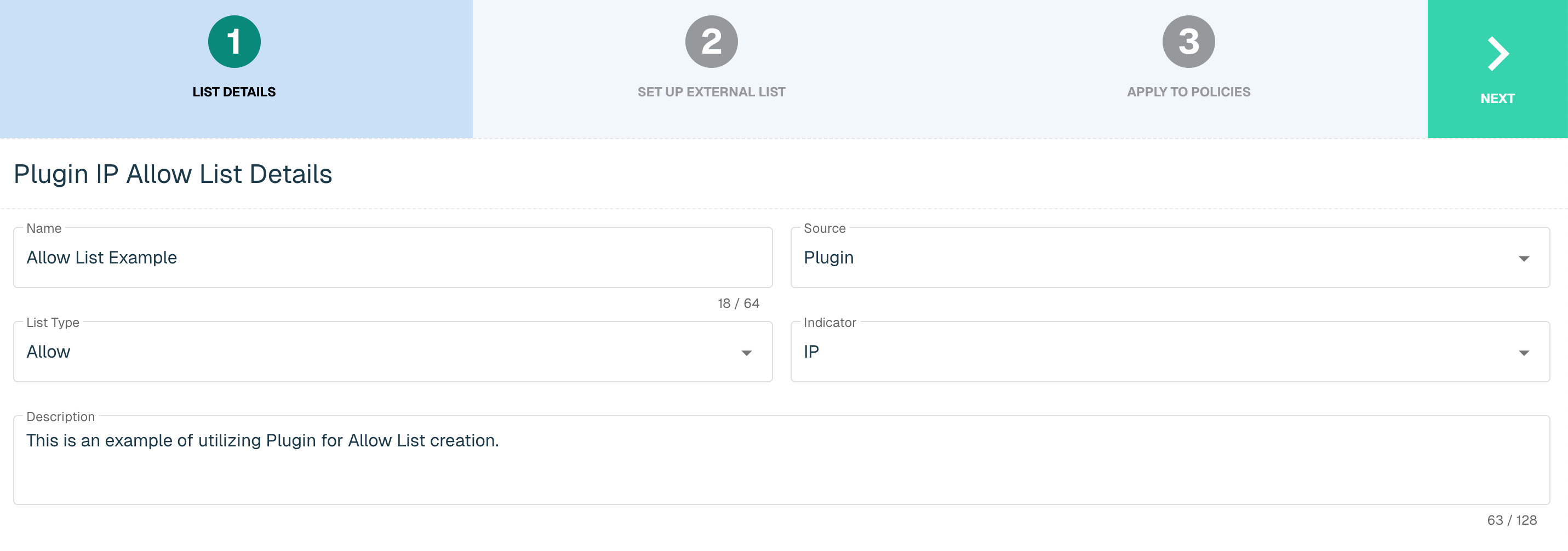
Select Next to proceed to the Set Up External List step once all required fields are complete.
Add Allow Entries
Select the Plugin from the drop-down. Options for Allow List Plugins include:
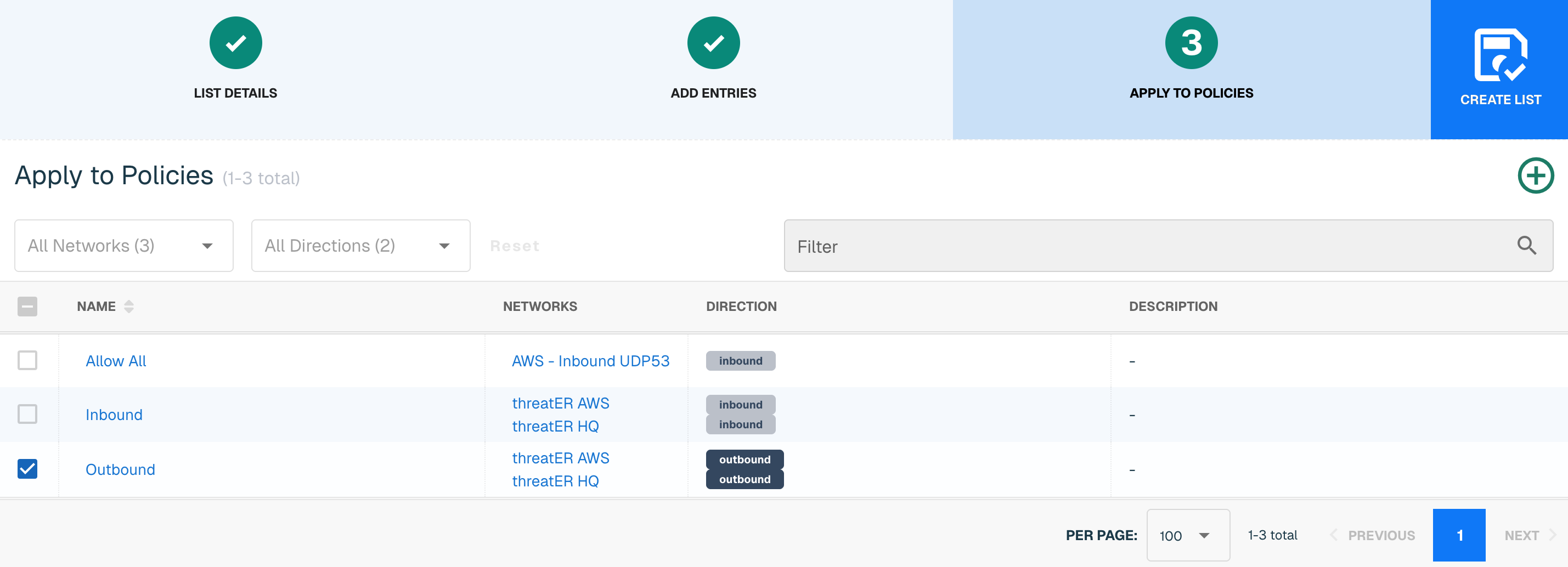
Apply Allow List to Policies
Entries within an IP list are not allowed until the List is applied to a Policy. To apply this new list to a policy, select the applicable policies. Select the Create List button to create the List once all desired selections are made.
Utilizing Plugin for IP Block List Creation
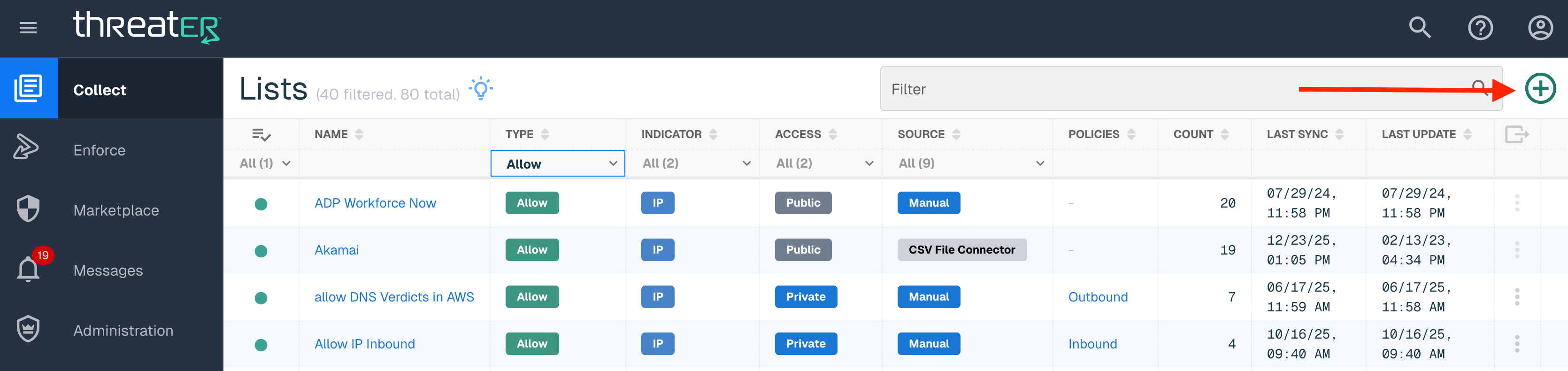
Navigate to Collect in the left-hand navigation menu to utilize a plugin IP list. Select the green ⊕ icon button in the top-right corner.
Block List Details
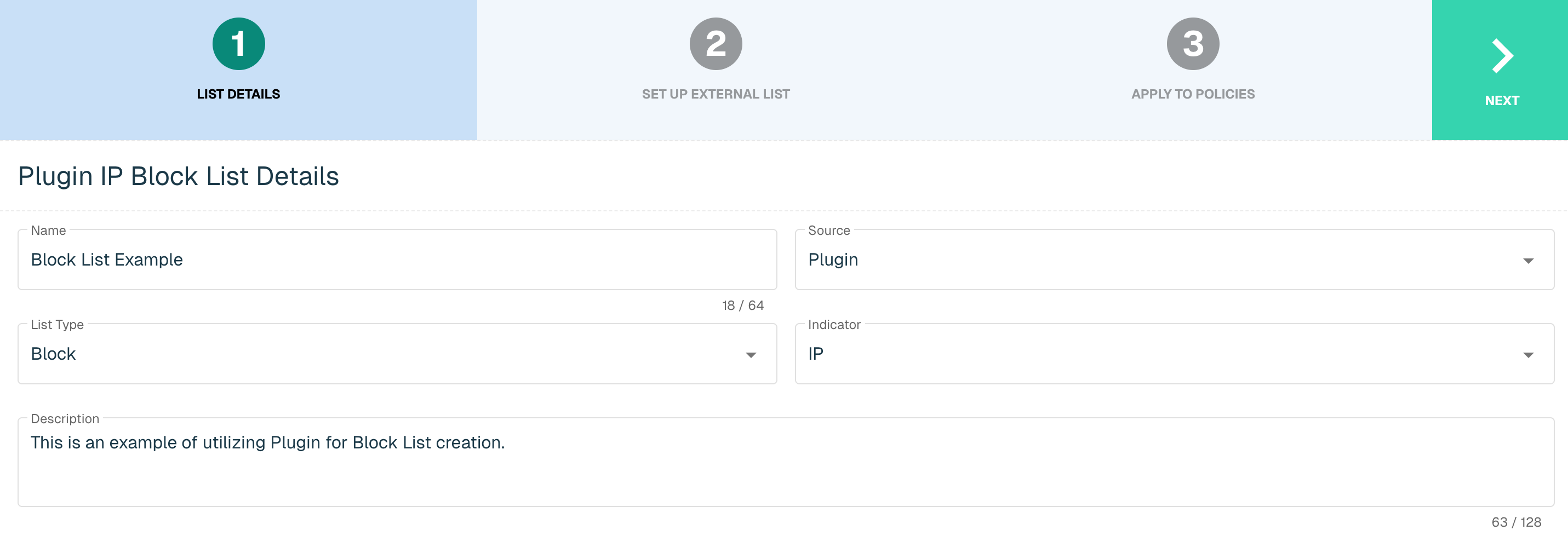
Provide the following information (* indicates required field):
|
Field Name |
Description |
|
Name* |
Unique list name required |
|
Source* |
Options include Manual or Plugin but in this example, select Plugin. |
|
List Type* |
Options include Allow, Block or Threat. |
|
Indicator* |
Options include IP or Domain but in this example, select IP |
|
Description |
A brief summary of the list |
Select Next to proceed to the Set Up External List step once all required fields are complete.
Add Block Plugin Entries
Select the Plugin from the drop-down. Options for Block List Plugins include:
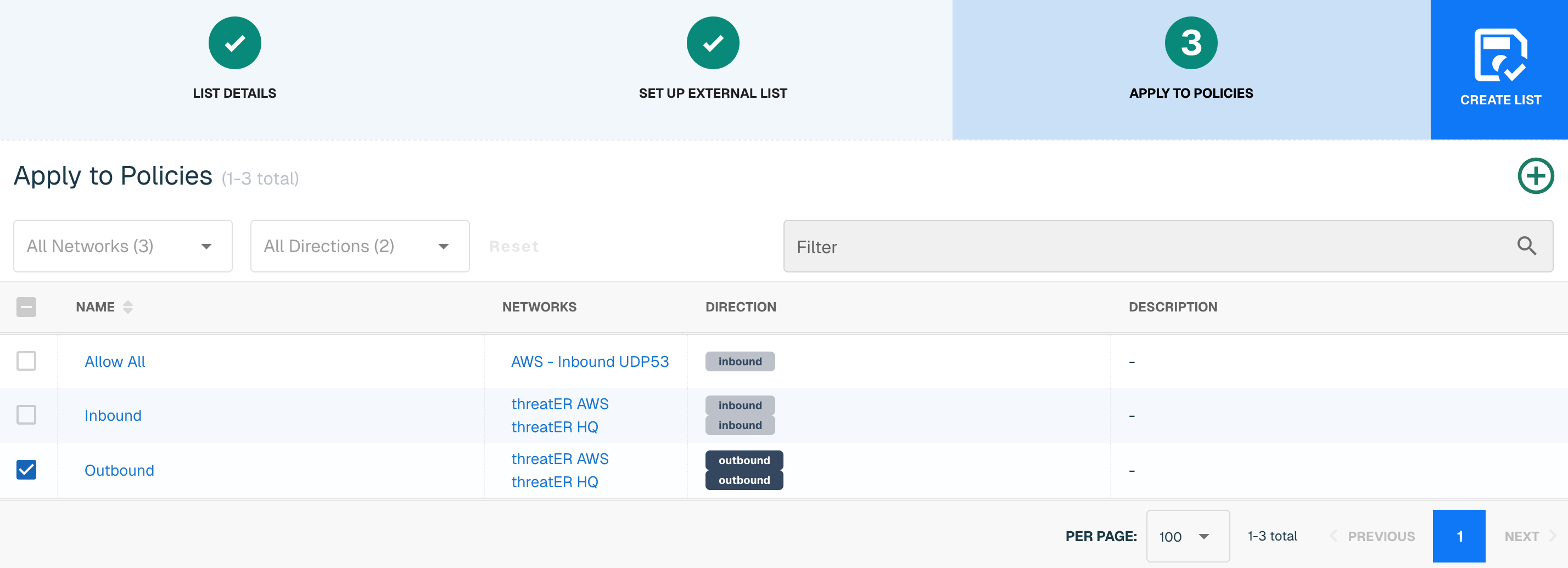
Apply Block List to Policies
Entries within an IP list are not blocked until the List is applied to a Policy. To apply this new list to a policy, select the applicable policies. Select the Create List button to create the List once all desired selections are made.
Utilizing Plugin for IP Threat List Creation
threatER does not support Manual Threat Lists, or Threat Domain Lists. The application does support the following Threat IP Plugins:
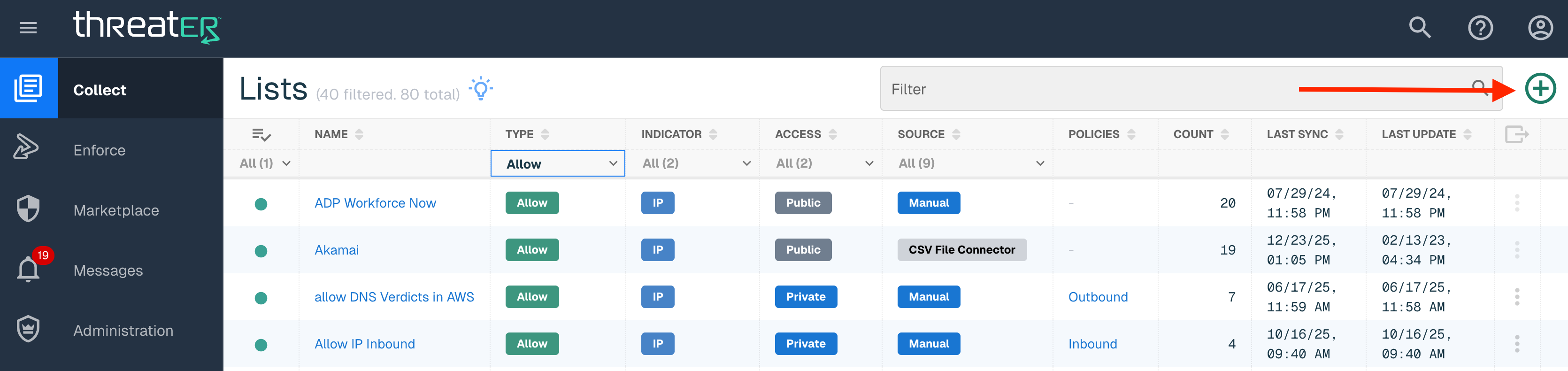
Navigate to Collect in the left-hand navigation menu to utilize a plugin IP list. Select the green ⊕ icon button in the top-right corner.
Threat List Details
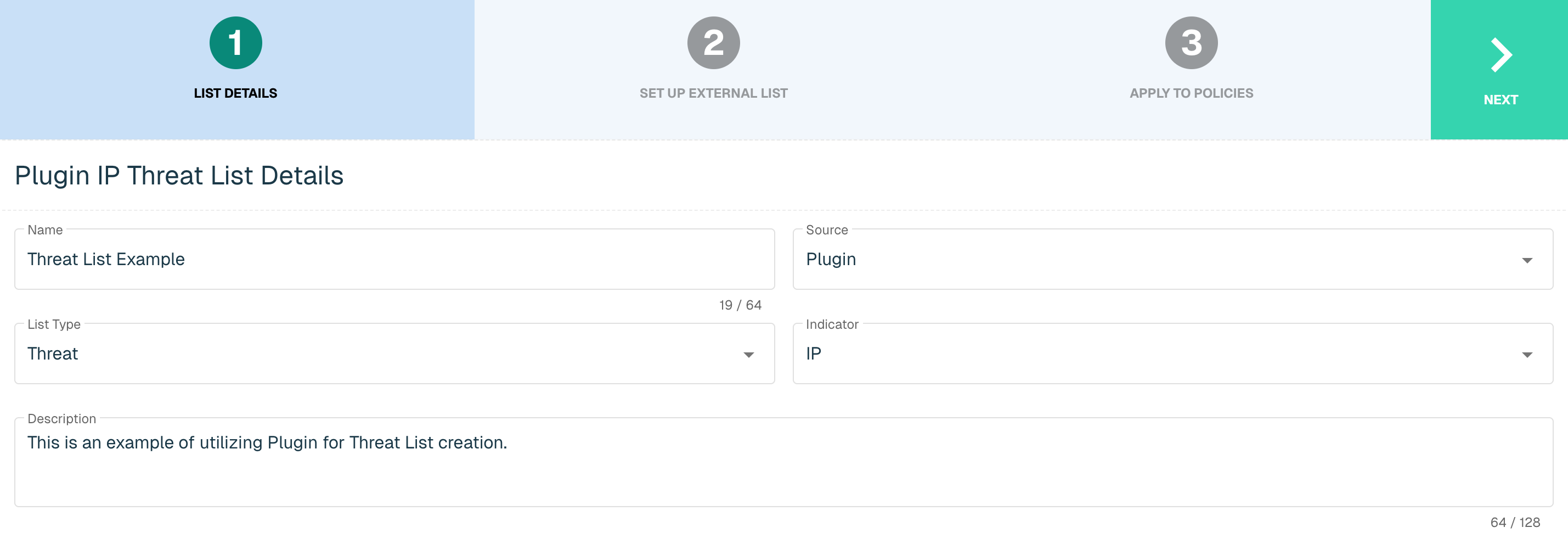
Provide the following (* indicates required field):
|
Field Name |
Description |
|
Name* |
Unique list name required |
|
Source* |
Options for Threat List are only available for Plugin |
|
List Type* |
Options include Allow, Block or Threat. |
|
Indicator* |
Options include IP or Domain but in this example, select IP |
|
Description |
A brief summary of the list |
Add Threat Plugin Entries
Select the Plugin from the drop-down. Options for Threat List Plugins include:
Apply Threat List to Policies
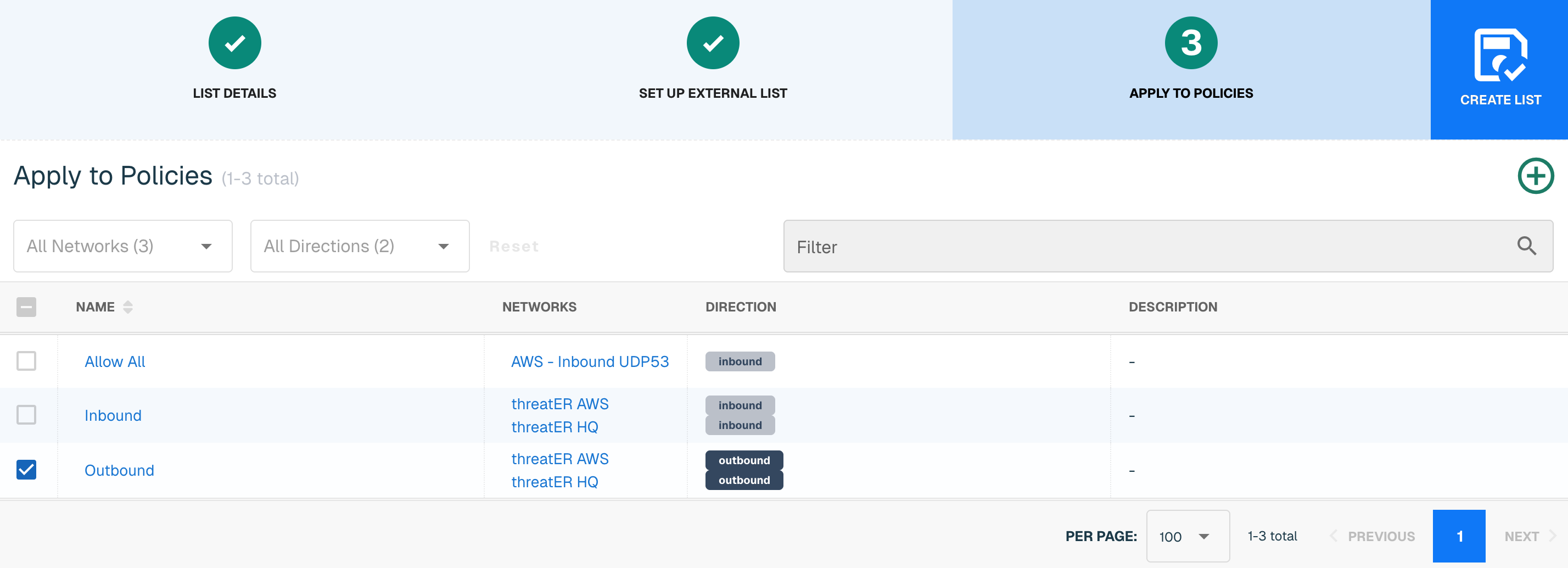
Entries within an IP list are not activated until the List is applied to a Policy. To apply this new list to a policy, select the applicable policies. Select the Create List button to create the List once all desired selections are made.
Create New Policy During List Creation
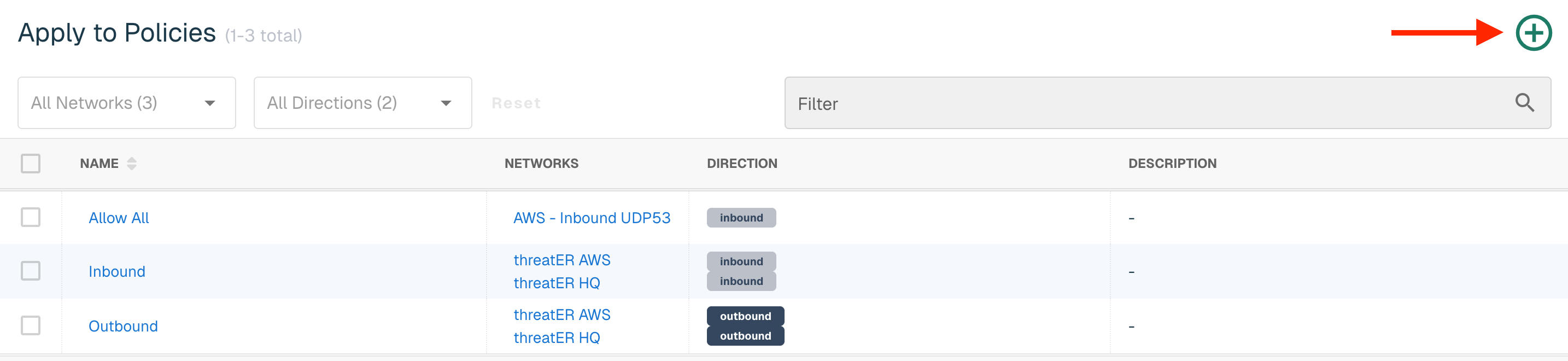
Admins have the option to create a new policy within the Create List wizard if a policy does not exist during manual list creation or when utilizing our out-of-the-box integrations. Select the Create button on the Apply to Policies step and then follow the steps to create a policy. See Policies section for more details.
Adding and Removing Manual List Entries
Adding IP Entries
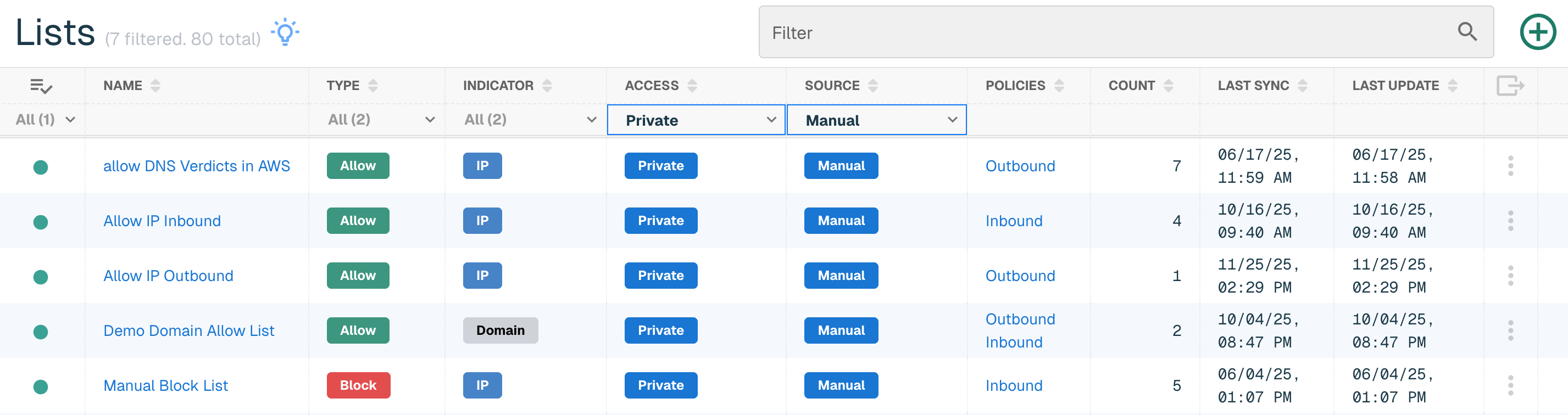
Select the applicable Manual Private List (Allow or Block) to add entries to a Manual List. Find the list in the table and click on the list name.
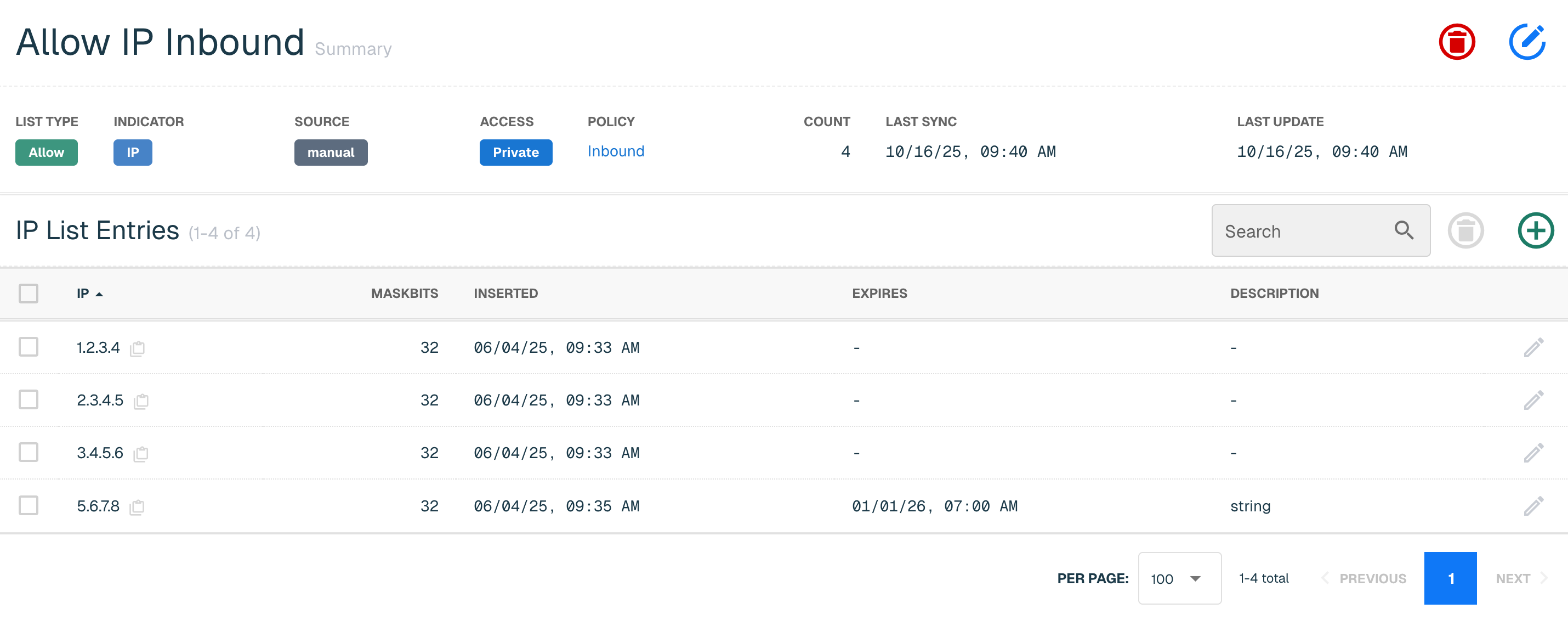
Use the Search field to enter the IP. If the entry does not already exist in the list, select the green ⊕ icon to add the IP(s). In the right-hand panel, enter the additional required data and click Add. Follow the steps above to add additional entries to the list.
Removing IP Entries
Select the applicable List tab (Allow or Block) to remove entries to a Manual List. Find the list in the table and click on the list name.
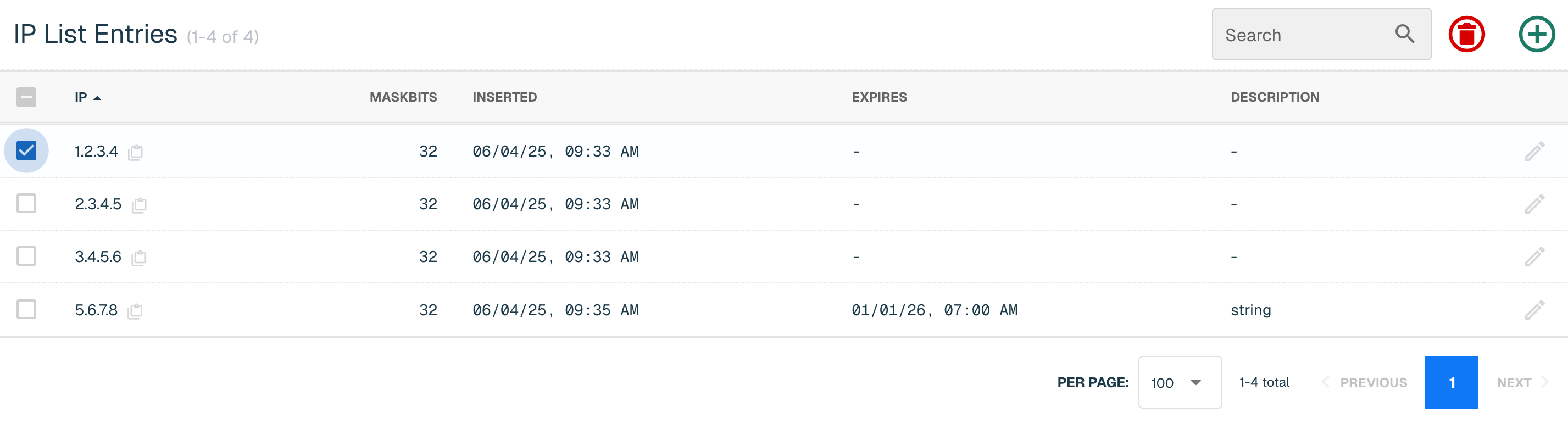
Select the checkboxes next to the entries that should be removed. Select the Red trash can button.
Select the Delete button on the confirmation modal. The entires are now deleted from the list and can't be retrieved.
Editing All List Components
A Private Access Manual IP List can be edited including its details and entries. Lists that are tagged as Public Access can't be edited by end users. Select the applicable List tab (Allow or Block), find the list in the table and from the ellipsis menu, select Edit.
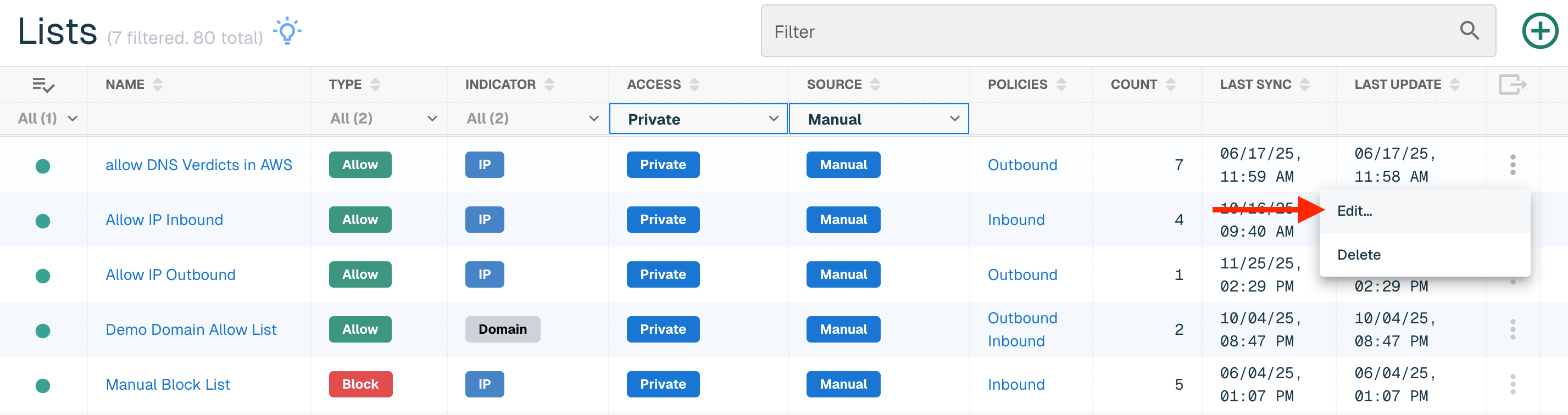
Certain fields like List Type, Source and Indicator can't be edited. Entities gives you the ability to add or remove IPs. Refer to Adding & Removing Manual List Entries section for guidance on how to amend existing list entries. If no other List edits are desired, select the Save button in the top right corner.
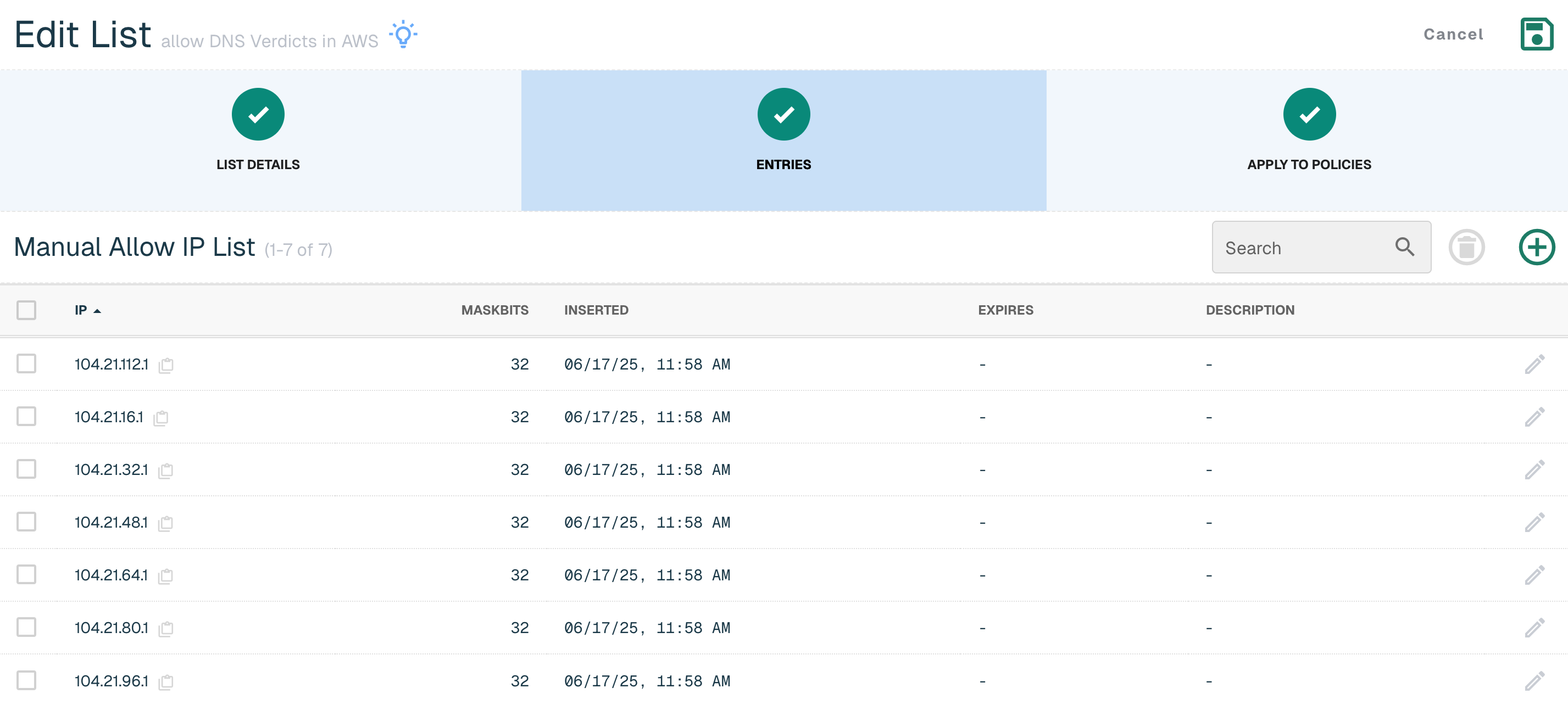
Select the Apply to Policies to adjust the Policies associated with the List. Refer to the Apply to Policies section for guidance. Select the Save button in the top right corner if no other List edits are desired.
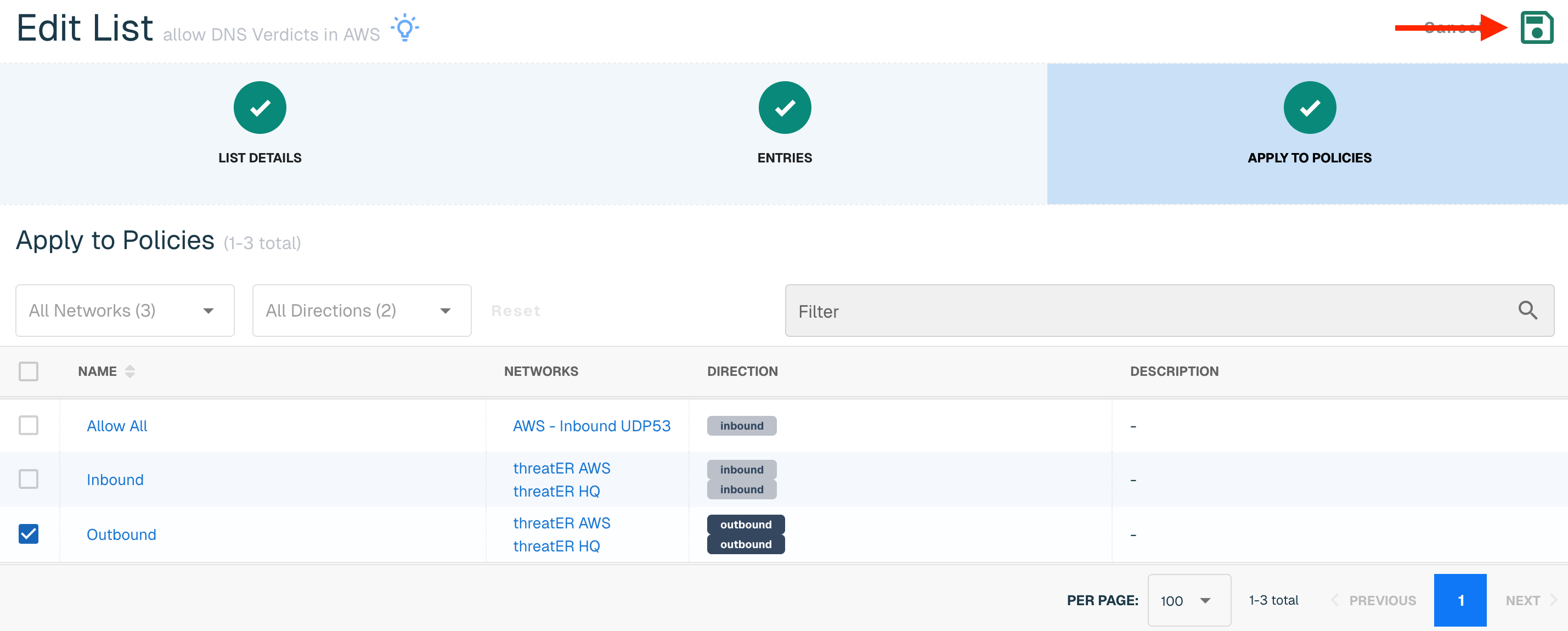
Deleting a List
Select Delete from the ellipsis menu of the table to delete a IP List. Lists that are tagged as Public Access can't be deleted by end users.
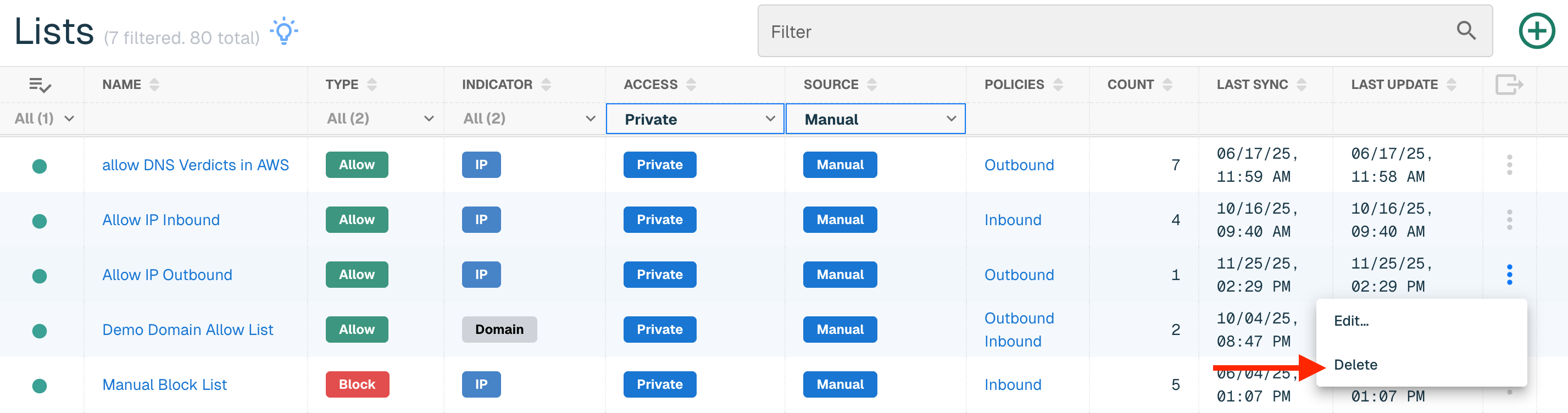
Select Delete on the confirmation modal. The list is now deleted and can't be retrieved.