
The Portal provides customers the ability to install the latest Enforce software build onto their Enforcer(s). Users can access the latest build by selecting Enforce > Enforcers in the left-hand navigation menu.
Users have the option to perform an immediate update, or to schedule an update at a later time. Installing new software will force a reboot of the Enforce instance. The instance will be offline and in bypass mode during the install. If a new build becomes available between now and the Scheduled Date, the latest available build will be installed.
Note that unless otherwise stated in our threatER Enforce release notes, the Enforcer will always be updated from the existing version to the latest version, even if there are versions in between. The standard update will take approximately 10 minutes and at the end of the update there will be a brief disruption as the Enforcer reboots once to complete the installation. Any exception to this will be called out in the release notes.
The following information is displayed:
|
Name |
Description |
|
Build Number |
The latest build number |
|
Release Date |
the release date of the latest build |
|
Release Notes |
PDF of the build release notes that will open in a separate browser tab |
|
Critical Update |
Displays at the top of the screen if the build is critical in nature, including important security-related updates, critical bug fixes, or new features critical to the operation of the threatER platform. Admins should install critical updates as soon as possible. |

Update Now
In the row of the Enforcer, select Update Now from the ellipsis menu to immediately install the latest build.
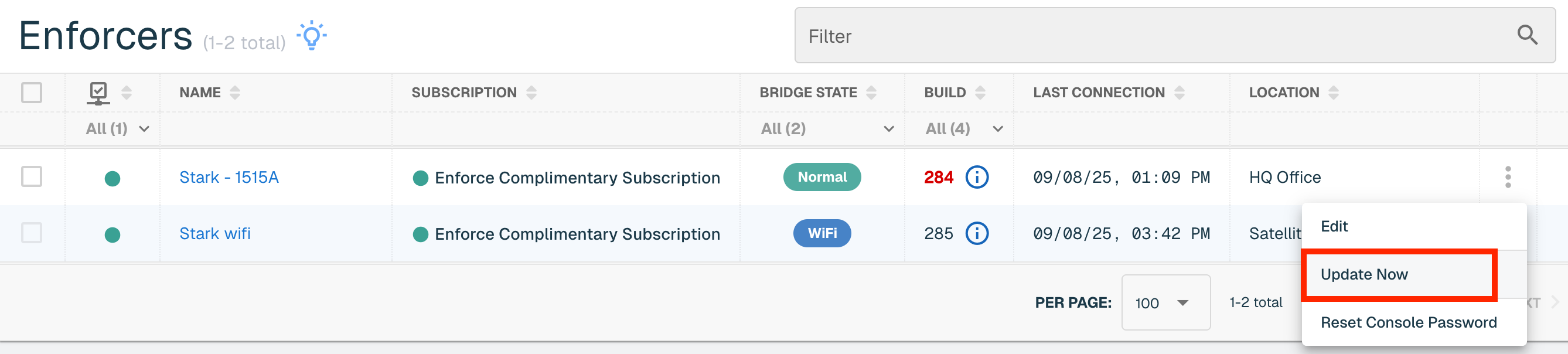
Select the Update button on the confirmation modal. The info glyph will display Update Pending for the Enforcer until the build installation is complete and will automatically clear as soon as the associated Enforcer has begun the process of the update. The installation may take several minutes to finalize.
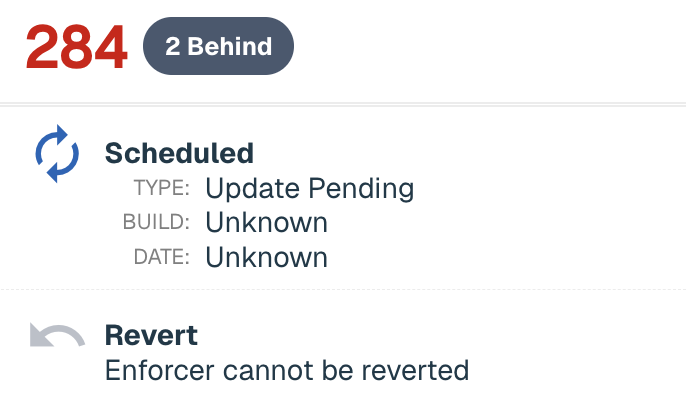
Upon completion the new build number will appear in the status column.
Schedule Update
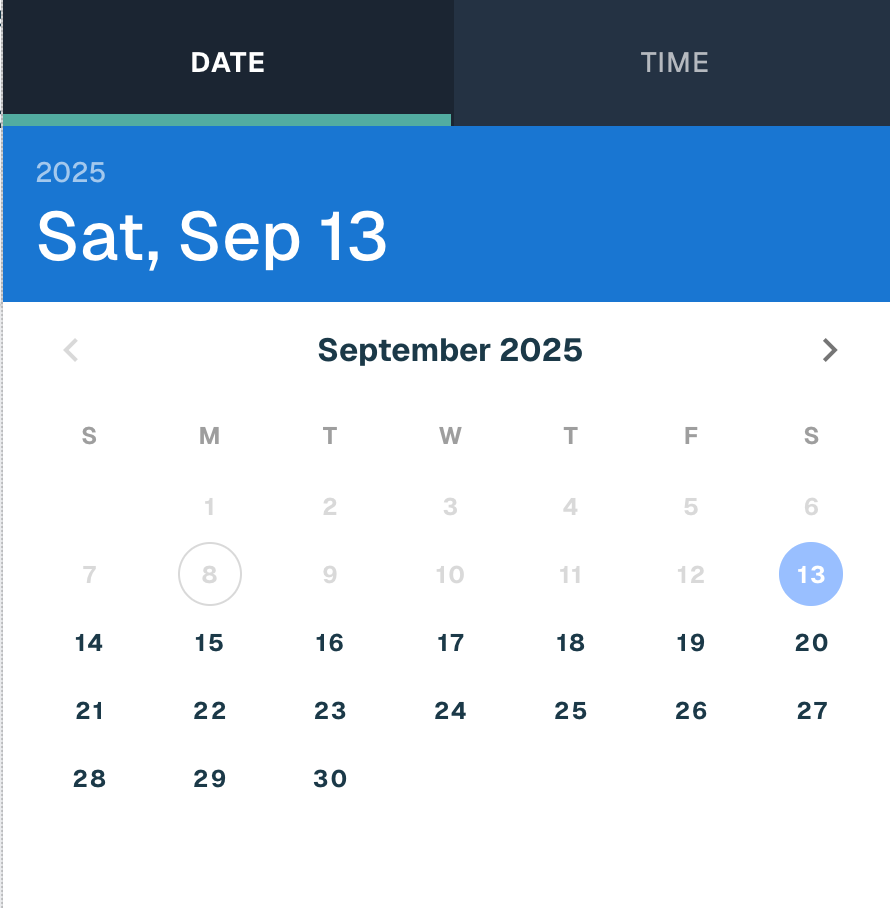
Updates can be scheduled for one or more Enforcers. To schedule a build installation, select the Enforcer(s) in the table and provide desired date and time in the calendar.
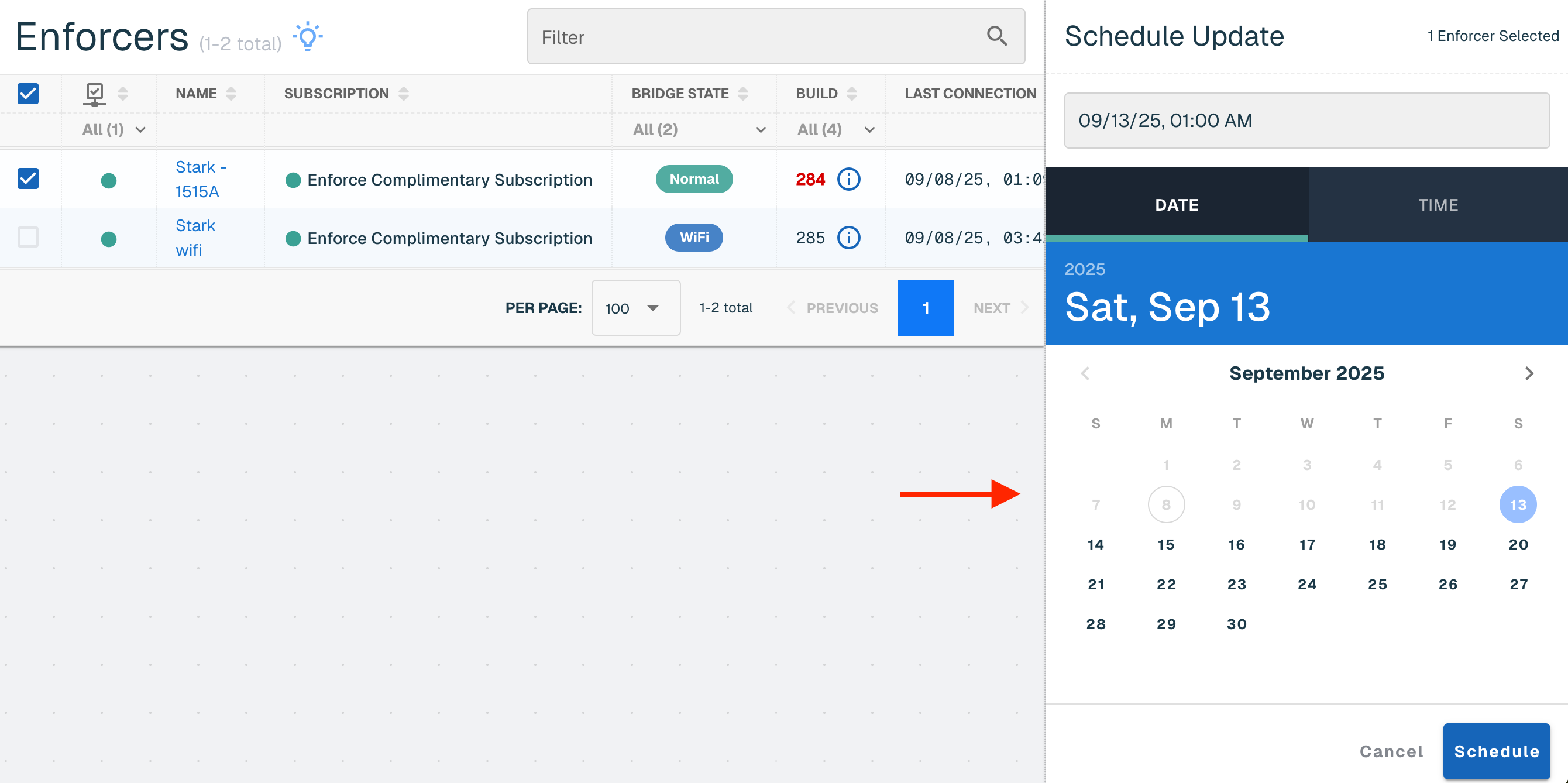
The time selected is in the user's local timezone, but saved in the backend in UTC. If the user is located in New York City (EST) and selects 6:00PM, but the Enforcer is located in San Francisco (PST), the installation will begin at 6:00PM EST or 3:00pm PST.
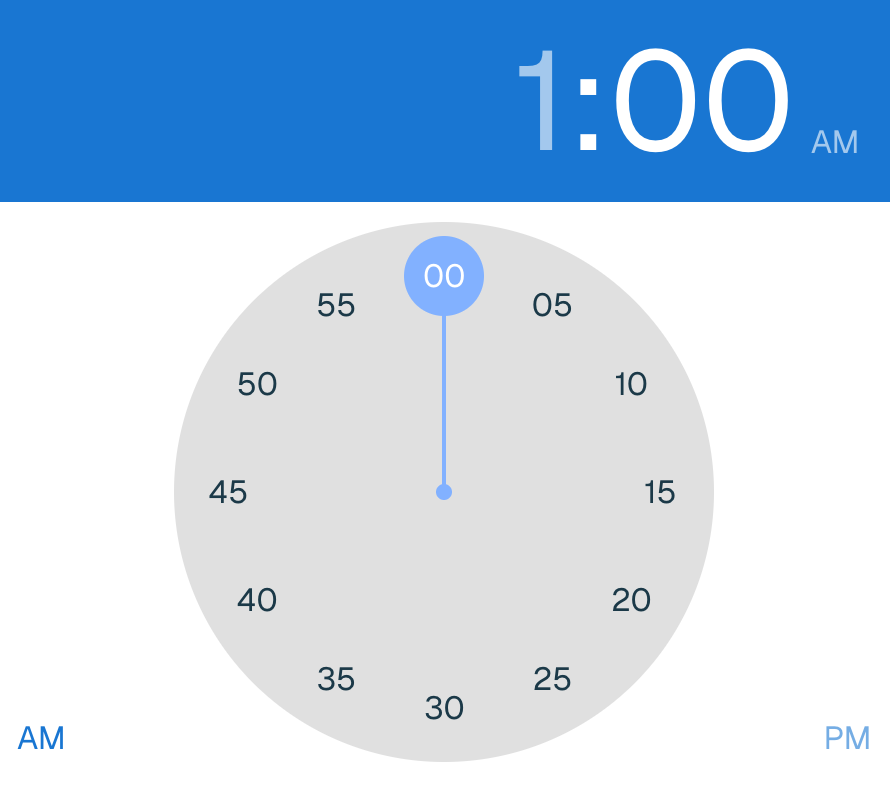
Select the Schedule button and then Schedule on the Confirm Schedule Updates modal. The info glyph will reflect the update schedules.
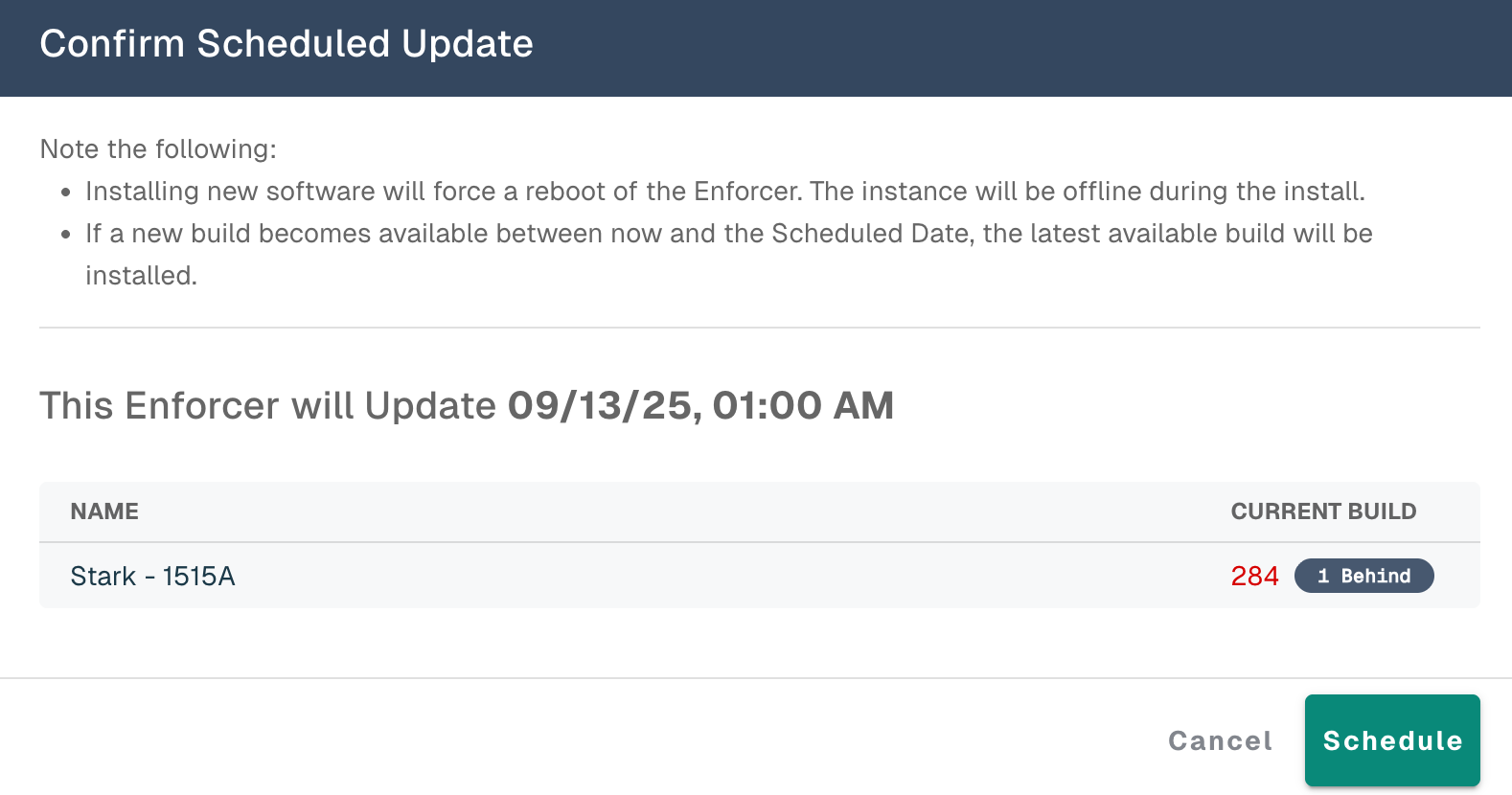
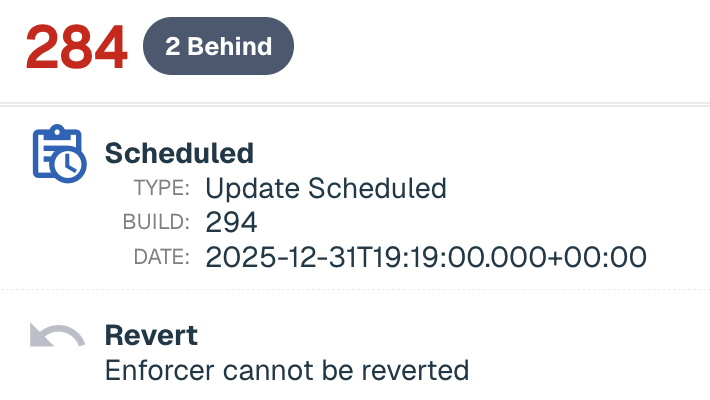
Cancel a Scheduled Update
In the row of the Enforcer, select Cancel from the ellipsis menu to cancel a scheduled update.
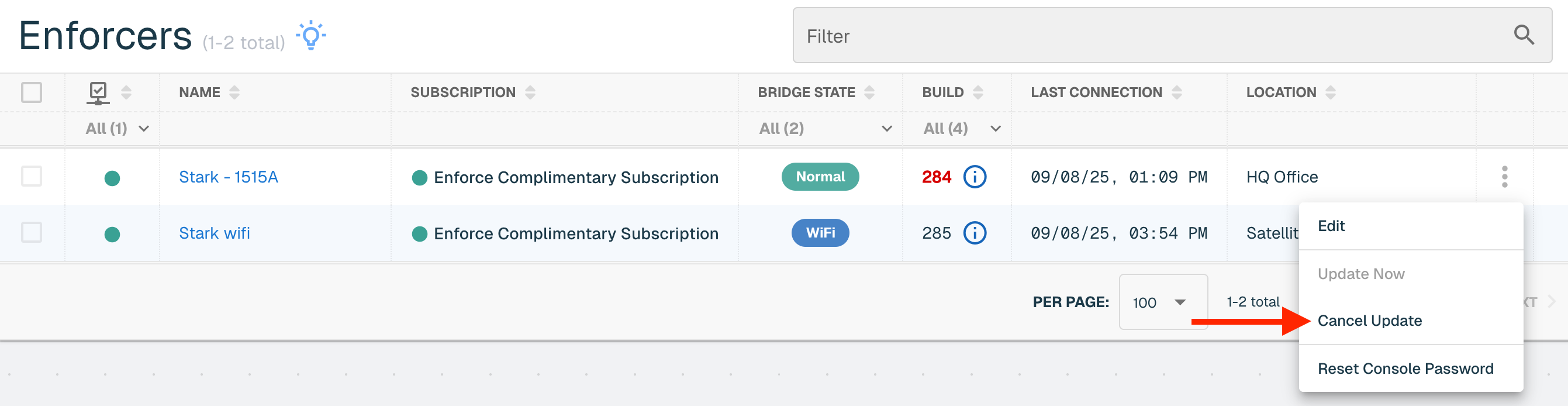
Select the Cancel button on the Confirm Cancel modal. The table will reflect the cancelation with the removed scheduled time.
Revert to Previous Build
Users may have the ability to revert to the previous software build that was installed on an Enforcer, if both the previous and current versions, as a pair, are revertible. Reverts must be scheduled and can be done by completing the following steps:
Select Schedule Revert to Build [#] from the ellipsis menu of the Enforcer.

Choose a date and time from the calendar (both hours and minutes). The time selected is in the user's local timezone, but saved in the backend in UTC. If the user is located in New York City (EST) and selects 6:00PM, but the Edge instance is located in San Francisco (PST), the installation will begin at 6:00PM EST / 3:00PM PST. Select the Revert button to finalize the scheduling.
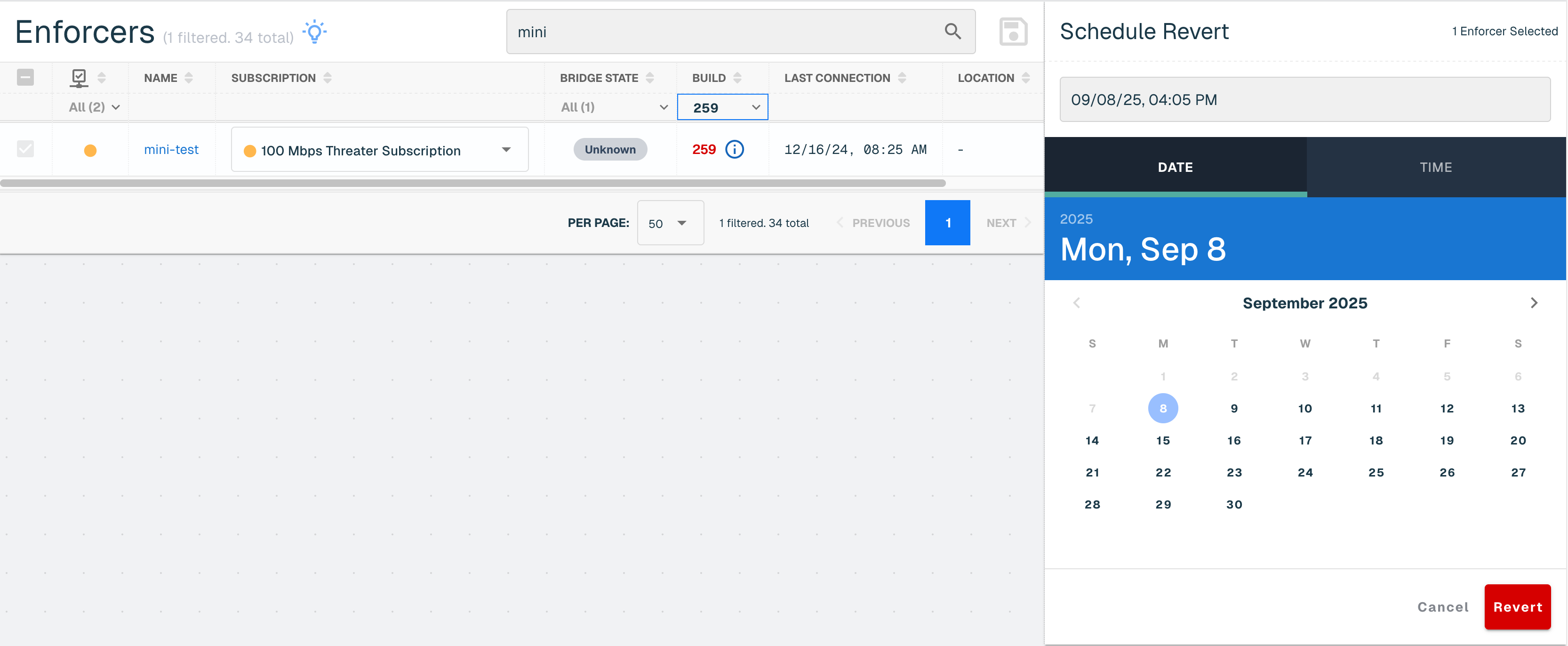
Select Revert in the Confirm Scheduled Revert modal. The table will reflect the scheduled revert. If the option to Revert does not appear, it means the ability to revert is not supported for the previous software version.
Manual Downloads
It is strongly recommended to utilize the automatic installation of Enforcer builds described in the above sections. Should a manual download of a build be required, please consult our Customer Success team for assistance. We do not recommend that you attempt Manual Downloads on your own without assistance. Use threatER's automated mechanism as previously described unless instructed otherwise by our Customer Success team.