
Overview
The Indicator of Compromise (IOC) Search allows users to search any IP address or Domain to obtain valuable information about the indicator, such as whether it is included in available lists, as well as how it maps to policy decisions.
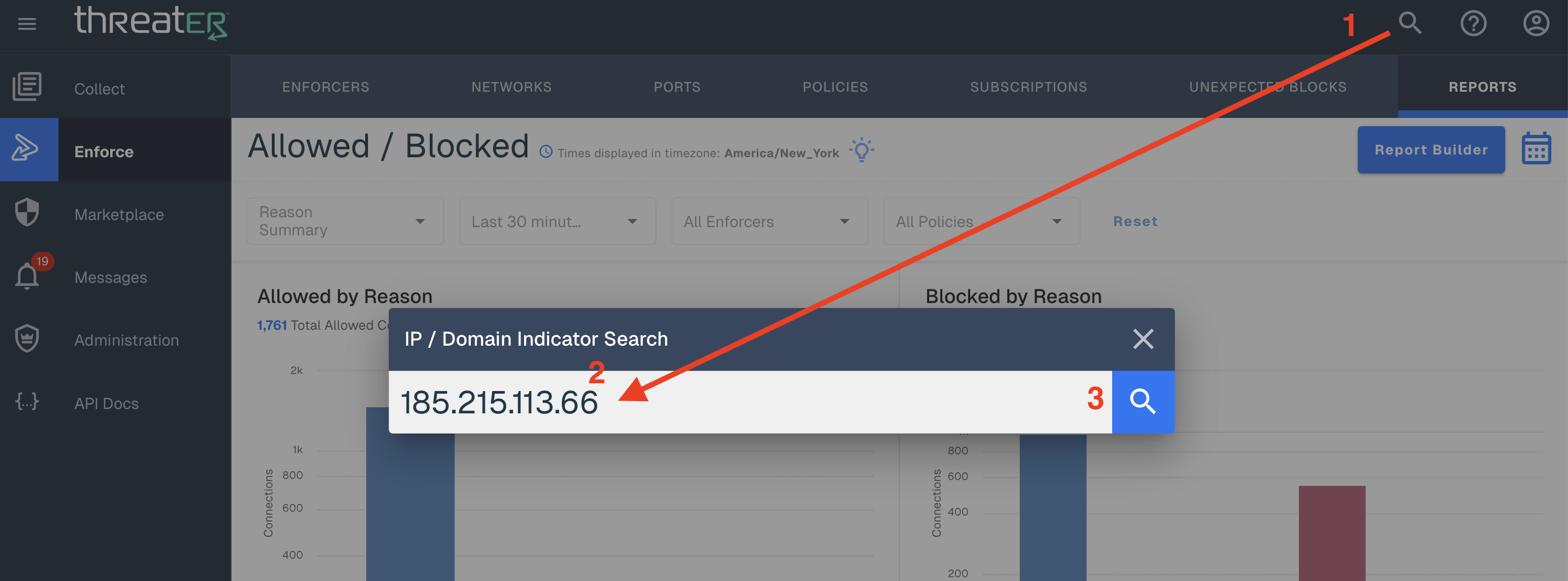
To perform a search:
-
Click the spyglass icon in the top navigation bar
-
Enter an IP address or Domain
-
Click the search icon in the modal
The IOC Search Results will display.
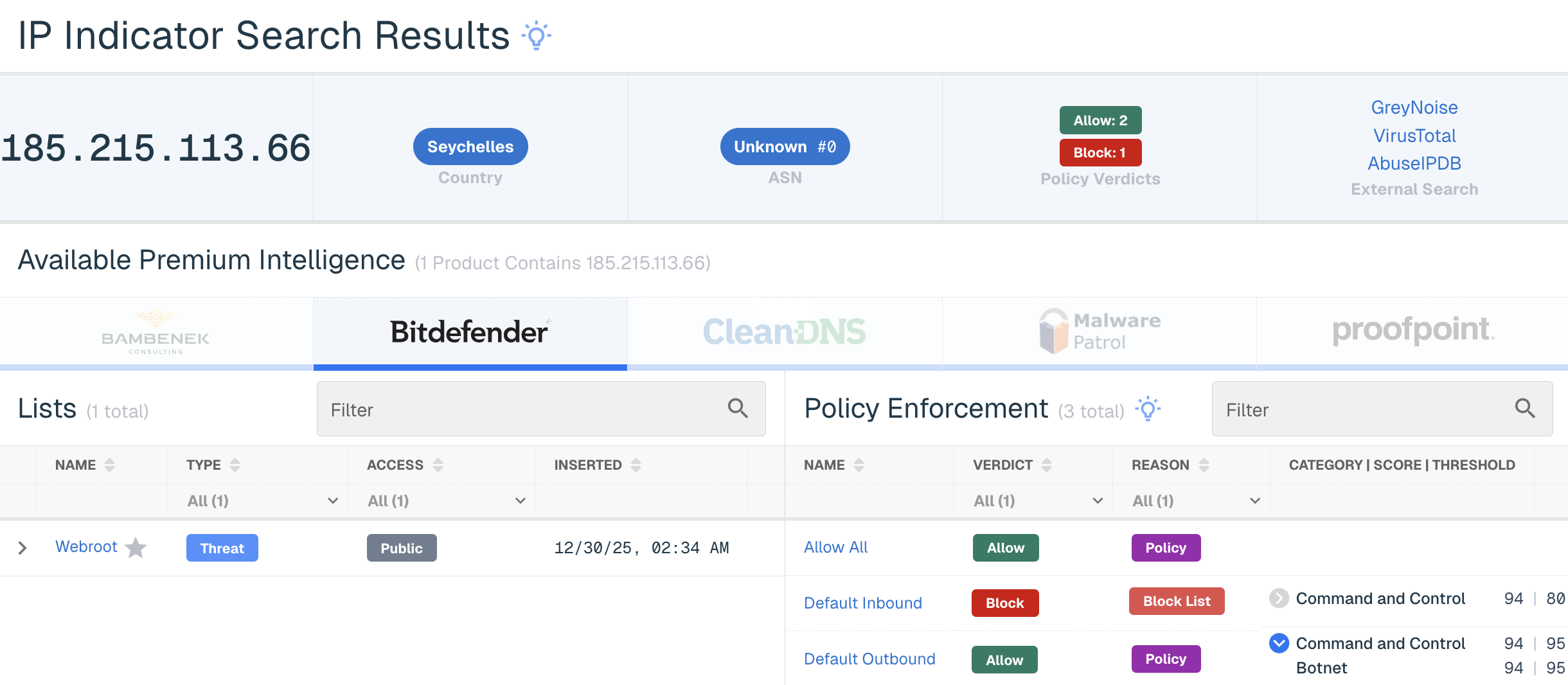
IOC Results Header
The IOC Results Header will display the following:
|
Header Name |
Description |
|
IOC |
The IP or Domain that was entered in the search criteria. |
|
Country |
The country the IP originated from, if known. This will not display for domains. |
|
ASN |
The ASN the IP originated from, if known. This will not display for domains. |
|
Policy Verdicts |
A roll-up count of how your company's policies would enforce the IOC. |
|
External Search URLs |
Where applicable, the following URLs will display for you to conduct additional searches on the IOC via well-regarded third-party sources: |
IP Result Header Example:

Domain Result Header Example:

Available Premium Intelligence
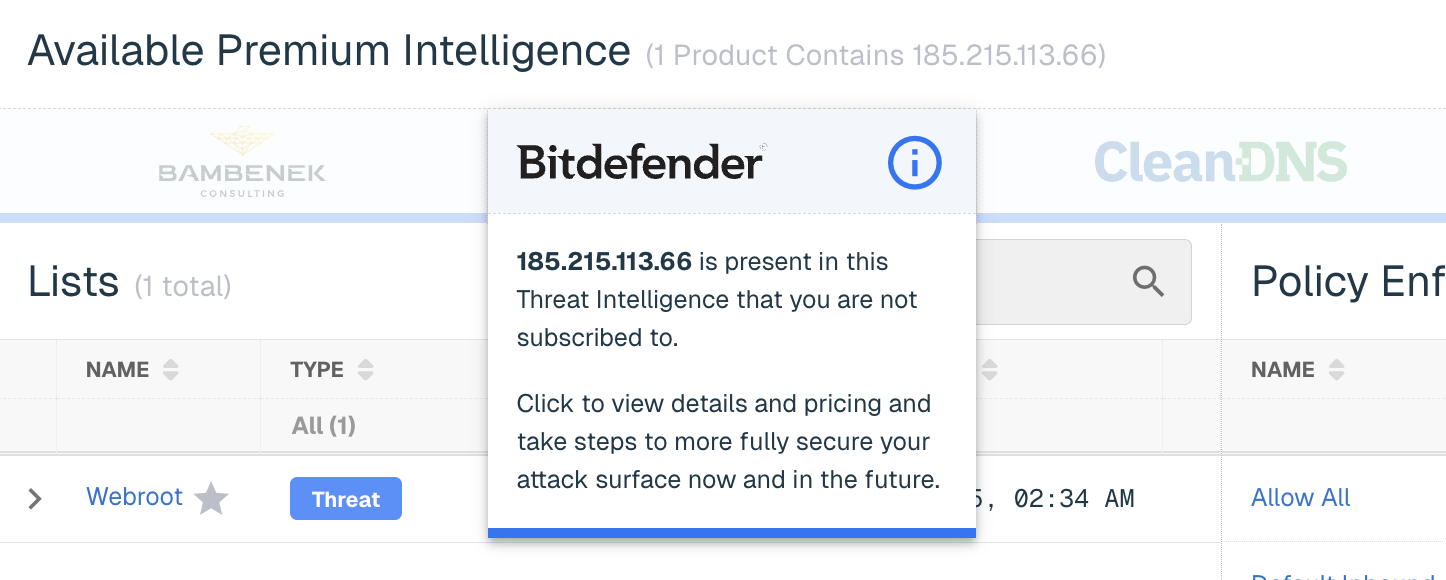
Premium Intelligence products that your company is not subscribed to will display below the IOC Results Header.
The card will be dimmed if the IOC is not found in a product's threat intelligence. If it was included, the product will display in full color with a blue bar at the bottom.

Scrolling over a product will provide additional information. Click on any product to access more details on the feed, view pricing and to take the necessary steps to purchase in the threatER Marketplace.
Lists
The Lists panel will display all lists the IOC was found on at the time the search was performed. This includes all block, threat, and allow lists that are available to your company’s account.
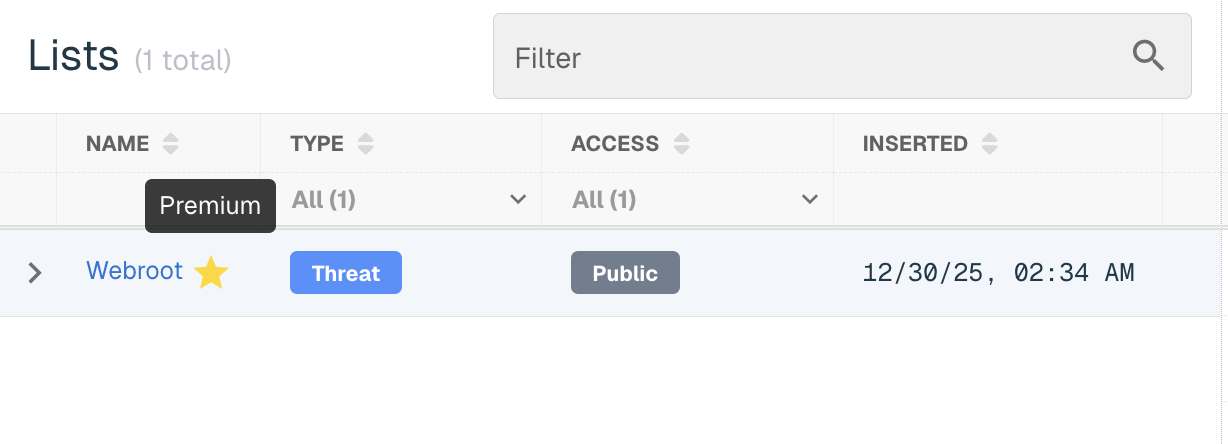
The panel will include the list name, list type, and the timestamp the IOC was inserted on the list. For IPs found on Threat lists, the timestamp displayed is the earliest value for all associated entries. For domains, the timestamp displayed is the earliest value for the most specific match. A star next to a list name indicates it is a premium feed that is either included with your Enforce subscription, or was purchased by your company in the threatER Marketplace.
To view the list’s enabled state on your company’s policies, expand the chevron to the left of the list name. Every policy on your account will display and a check mark will display to the right of it if the list is enabled on that policy.
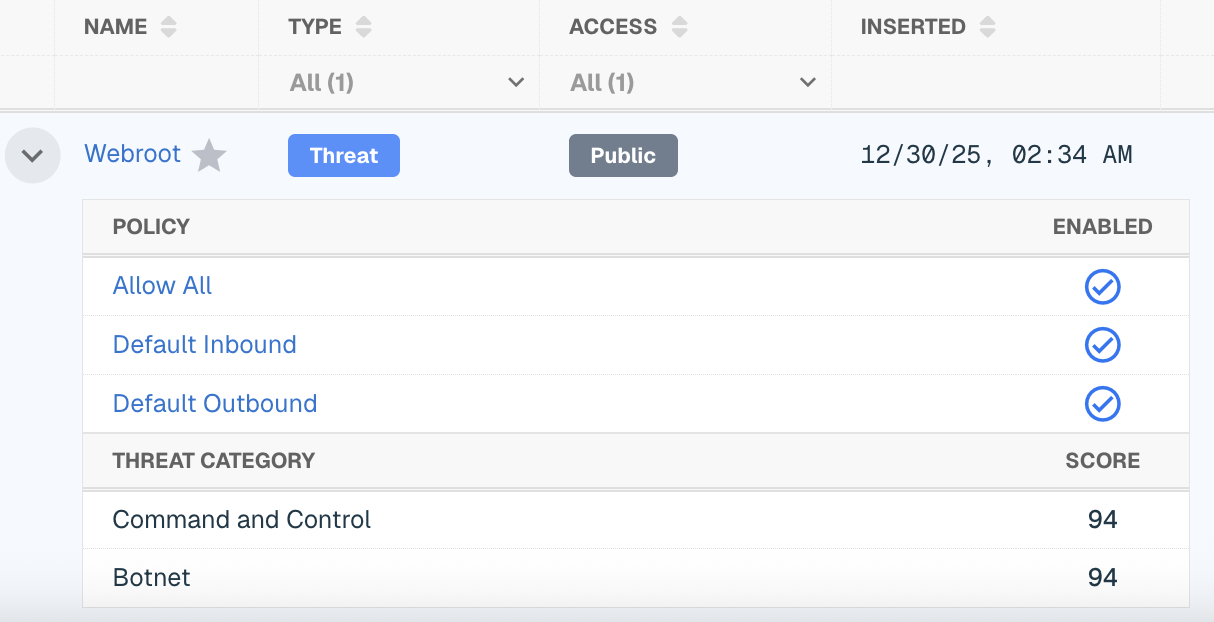
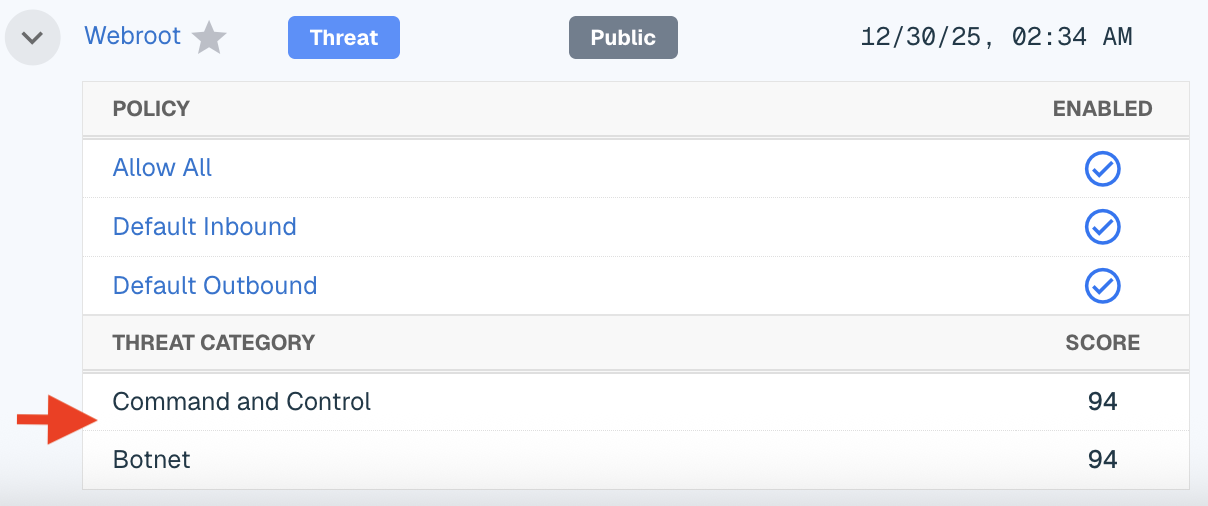
For threat lists, an additional table will display below the Policy table and include the Threat Category(s) and Score(s) of the IP.
Policy Enforcement
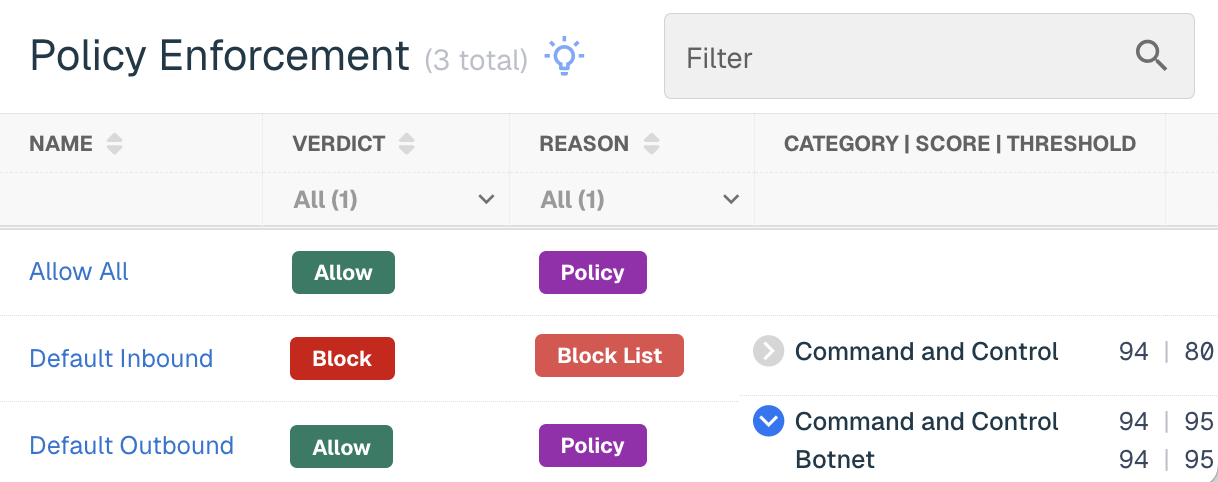
The Policy Enforcement panel will display all policies on your account and how that policy would enforce the IOC. Each policy row will display the Policy Name, Verdict of the IOC on that policy (block or allow), and the Reason for the Verdict, which will be one of the following:
|
Reason |
Description |
|
Allow List |
IOC is included on an Allow List that is enabled on the policy |
|
ASN |
IOC is included in an ASN that is set to "allow" or "block" on the policy |
|
Block List |
IOC is included on a Block list that is enabled on the policy |
|
Country |
IOC originates from a Country that is blocked on the policy |
|
Threat List |
IOC is included on a Threat list that is enabled on the policy |
|
Policy |
IOC was allowed because it was not specifically allowed or blocked on the policy, based on the criteria outlined above in one of the 5 other reasons |
If the IOC was included on a Threat list, the threat Category and Score will display, as well as the Threshold setting for that category on each policy. If the IOC was flagged as more than one Threat Category, a chevron will display next to the first Category name listed. You can expand the chevron to view the other Threat Categories, Scores, and Threshold settings.
NOTE: Previous versions of the API endpoint for this feature have been deprecated. When directly using the API, please use our v6 endpoints: